I’ve been using Copilot in VS Code for a while now, and it’s genuinely useful for the kind of small scripts I write regularly – visualising DEM output in Blender, sorting through CT scan data, that sort of thing. With an education account I get access to the top-end models, which is brilliant.
But there are times when you don’t want your data going to the cloud. Or you’re on the train and the WiFi is doing its best impression of a screensaver. Or you just fancy trying something different. Or, the impetus for all of this, you start working on much larger projects where editing a bit of code here and there isn’t enough.
So I’ve been putting together a local AI stack that actually works for my workflow, and I thought I’d document it here because the landscape is a bit of a mess right now and it took me way longer than it should have to get things sorted, but now it’s up and running, I’m absolutely blown away by what it can do. This is all free, it’s all local.
The three pieces are:
- LM Studio – runs the models locally
- OpenCode – the coding agent that talks to those models
- Hermes Agent – the thing that orchestrates everything
Here’s how I got it all working together.
LM Studio – the engine
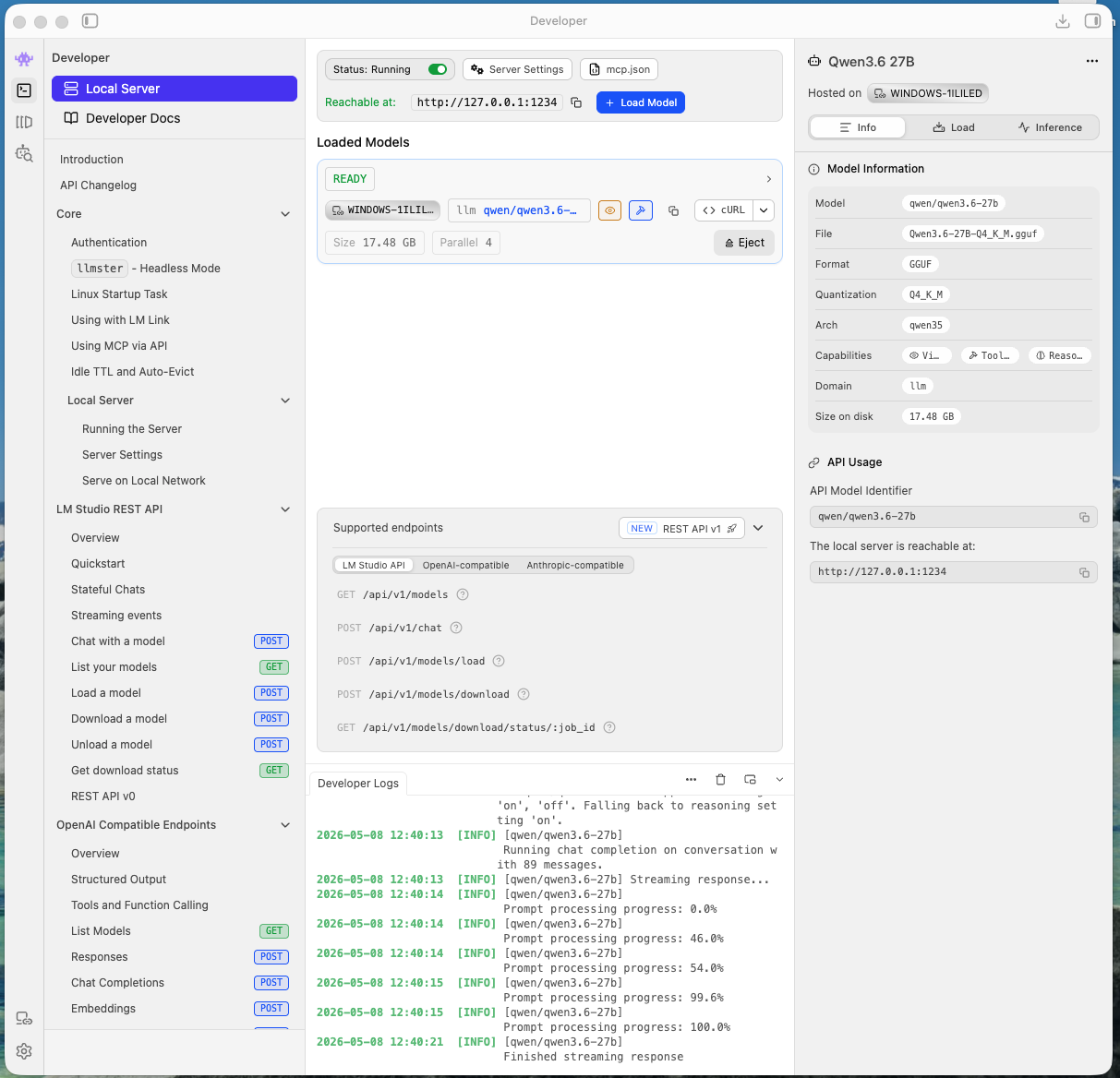
LM Studio is the bit that actually runs the models on your machine. It’s free, open-source, and has a decent enough GUI that you don’t need to faff around with command-line model downloads. I’ve used it before, to run models locally, but mainly that was just for chat in the lm studio UI, or hooked up to VS code.
There are two ways to use it:
Option 1: Local setup. Download LM Studio, pick a model from their catalogue, download it, and it runs a local server on http://localhost:1234/v1. This is an OpenAI-compatible endpoint, which means anything that talks to OpenAI can talk to it instead. The model runs entirely on your machine – your CPU, GPU, or NPU if you’ve got one. I’m fortunate enough to have my fantastic Asus Proart P16 with 24gb 5090, so that’s able to run pretty large models itself. But, as I pointed out in that review, performance tanks on battery, and Local LLMs become a chore. I also use other computers frequently that don’t have such an obnoxiously overpowered GPU. And so I’ve gotton into using….
Option 2: LM Link. Turns out LM Studio has implemented LM Link, based on tailscale, which means you set lm studio running on a computer with a decent GPU, then just sign in with email, or google, or github or whatever, and when you sign in on another computer, you immediately get access to the model running on the workstation elsewhere. It’s incredible. This is what I’m currently using. Useful if your local hardware isn’t up to it, or if you want to share a model across machines, or if you just want a nice cool laptop while a desktop with a beefy GPU churns away somewhere else. In my case, I’ve a desktop workstation with a 24gb 4090 for this use case. The key thing to know is that once LM Studio is running with a model loaded, it exposes that localhost:1234/v1 endpoint. Everything else in this stack plugs into that.
I’ve been running the new models Qwen3.6-27B and Gemma 4-26B through LM Studio. Both handle coding tasks well, though Qwen tends to be the more reliable of the two for actual code generation I think. A browse of social media will find hundreds of people extolling the virtues of one or both of these models. It’s worth noting that local models are slower and lower quality than cloud ones. There’s no getting around that. But for working offline, or for code you don’t want leaving your machine, it’s a decent trade-off. Having said that though, these new models are easily at the quality of the cloud-based frontier models from last year.
OpenCode – the coding agent
OpenCode is a terminal-based AI coding agent. It’s provider-agnostic, which means you can point it at anything – OpenAI, Anthropic, or in my case, the local LM Studio endpoint.
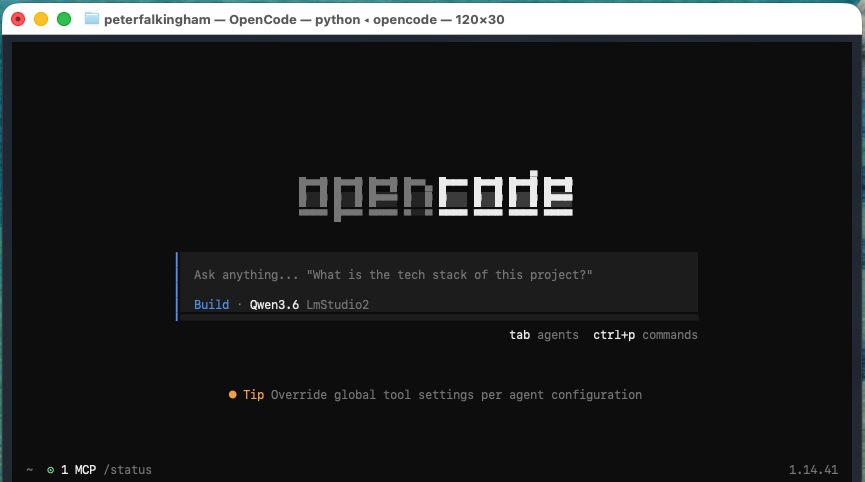
Installation is straightforward: just a single command as listed on the website depending on your OS (I’ve now done this whole workflow on Windows, MacOS, and Linux and the process is much the same)
You need to tell it where your models are. This is where the config file comes in – I’ve got it set up to point at my LM Studio instance, where i might load either Qwen or Gemma (I need to know what’s loaded in lm studio, because opencode and Hermes won’t auto-select). I’ve also added my own system prompt that tends to keep responses to the point and reduce the number of tokens needed. I also tend to turn off thinking for Qwen – it slows down responses substantially, but doesn’t increase quality enough for it to be worth it, in my opinion. Regardless, this is my opencode.jsonc:
{ "$schema": "https://opencode.ai/config.json", "provider": { "lmstudio2": { "name": "LmStudio2", "npm": "@ai-sdk/openai-compatible", "options": { "baseURL": "http://localhost:1234/v1" }, "models": { "qwen/qwen3.6-27b": { "name": "Qwen3.6", "modalities": { "input": ["text", "image"], "output": ["text"] }, "systemPrompt": "Keep responses to the point. One step at a time." }, "google/gemma-4-26b-a4b": { "name": "Gemma 4", "modalities": { "input": ["text", "image"], "output": ["text"] }, "systemPrompt": "Keep responses to the point. One step at a time." } } } }}
Save this opencode.jsonc in your project directory (or in ~/.config/opencode/ for a global config), and OpenCode will use it.
Once that’s done, you can run one-shot tasks:
opencode run "Add error handling to the API calls in src/client.py"
Or start an interactive session:
opencode
The interactive mode gives you a TUI where you can iterate on tasks, which is genuinely useful when the first attempt doesn’t quite hit the mark. I tend to work in interactive mode when using opencode directly.
Hermes Agent – the orchestrator
This is the bit that ties everything together, and also possibly the scariest, and if we’re honest the bit I’m still getting my head around. Hermes Agent is an open-source AI agent framework by Nous Research. It runs in your terminal and can use any LLM provider – cloud or local.
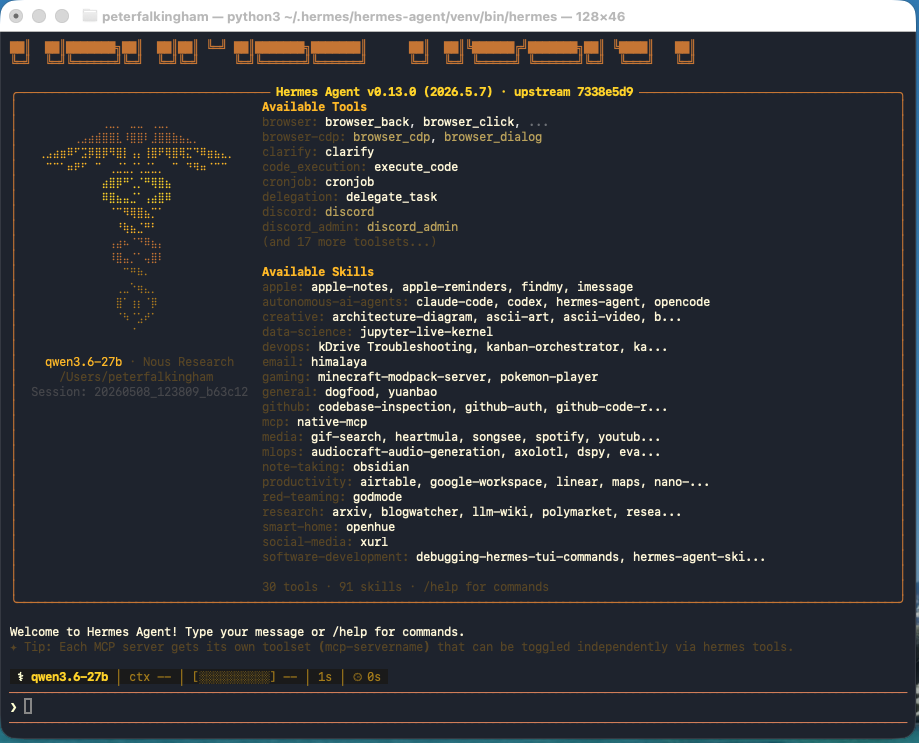
The thing that makes Hermes different from the other options (Claude Code, Codex, and so on) is that it’s provider-agnostic and has persistent memory across sessions. It remembers your preferences, your environment, and lessons learned. It also has a skill system where it saves reusable procedures – so if it solves a problem once, it can reuse that approach next time. I’ve been using it for a couple of days, but I’ve not got enough usage to see if that’s really the case or not. In the mean time, it’s absolutely showing it’s power at being able to do a bunch of stuff, from reading and organizing my ObsidianVault, to coding within whole projects.
Installation – as with opencode, it’s a one-liner depending on OS
curl -fsSL https://hermes-agent.nousresearch.com/install.sh | bash
Then run the setup wizard:
hermes setup
This walks you through configuring your model provider. You can point it at LM Studio the same way as OpenCode, or use any of the other cloud and local providers it supports.
Once it’s running, you can use it interactively:
hermes
Or fire a single query at it:
hermes chat -q "What files have I changed today?"
How they work together
The way I’ve set it up is:
- LM Studio runs in the background, serving models on
localhost:1234/v1 - OpenCode points at LM Studio for coding tasks within specific projects
- Hermes is my general-purpose agent – I use it for research, system administration, data analysis, and anything that isn’t strictly coding
When I’m working on a codebase, I’ll fire up OpenCode in the project directory and give it a task. When I need something broader – checking system status, organising files – I use Hermes. But what’s incredibly powerful is that Hermes has an OpenCode skill, which means it can fire up OpenCode and interact with it. So a complex project that needs external resources, or might need files moving around, or dependencies installing – Hermes can do it all. So I open a terminal, type ‘hermes’ then just explain what I want to do.
Both can use the same local models via LM Studio, so I’m not paying for API calls for routine stuff. And when I need the heavier lifting, I can swap to a cloud provider in either tool without changing anything else.
Is it worth it?
For me, yes. The main selling points are:
- Privacy – my code and data stay on my machine
- Offline access – works on the train, in the lab, anywhere without reliable internet
- No API costs – local models are free once you’ve got the hardware
- Flexibility – swap between local and cloud depending on the task
The downsides are obvious. Local models are slower. They’re not as capable as the top cloud models. And you need the hardware to run them – a decent GPU helps, though CPU-only setups work for smaller models. But the speed hasn’t bothered me – particualrly because you can just set a task or project going and walk away for a while to do something else.
But for the kind of work I do, it’s a reasonable setup. And the fact that all three tools are open-source and provider-agnostic means I’m not locked into anyone’s ecosystem.
I’ll probably write more about this as I refine the workflow, but this is where I am for now.
A final thought
I’ve never been more excited, and scared, of tech. The possibilities are dizzying, but there’s a nagging thought in my head that this stuff is just going to get easier to setup and use, and that’s going to lead to a lot of disruption.
A quick note on these screenshots
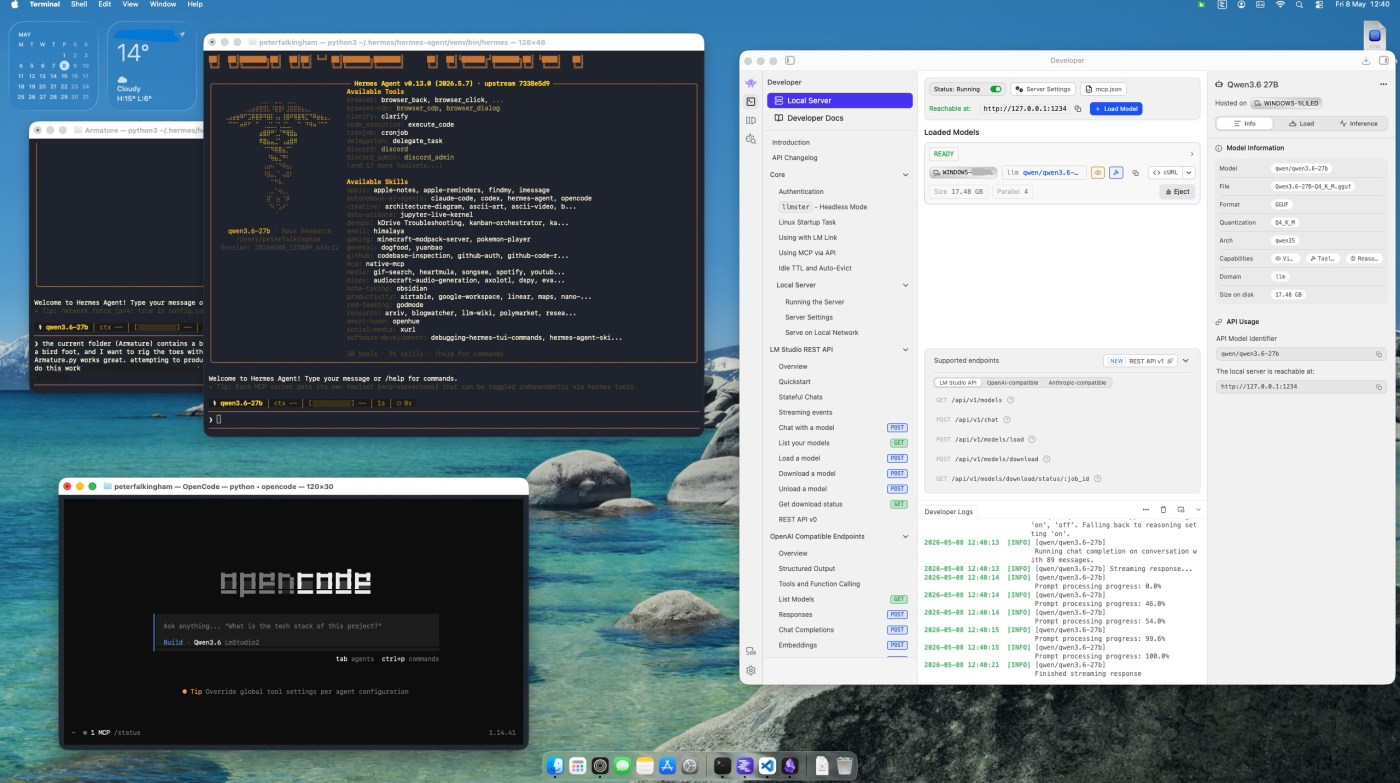
The screenshots in this post were taken by Hermes Agent itself. Via telegram, I asked it to launch all three applications, capture the screen, crop each window, and drop the images into the blog post. It did exactly that – got the images right first time, they just needed a bit of cropping to tighten the window frames.
What it didn’t do is save me any time. Something that would have taken me thirty seconds to screenshot manually took the AI about ten minutes of faffing around with Python scripts and coordinate detection. But, on the other hand, I managed to eat a Pot Noodle and drink a cup of coffee while the AI did it’s thing!


Thanks for the great write-up. Recently a user asked me about integrating VSCode into our network (computational biology) and I’ve been using this document has a guide for AI integration. I have been using generative AI for supporting code work but I haven’t yet achieved this level of integration. I see it having long-term usefulness in the environment that I routinely work in. I particularly like the crux of your last section, regarding the screenshots, that it wasn’t fast but it was still helpful. I have never heard the term pot noodle but I bet I’d like it.