
Despite having a terabyte of OneDrive storage (which I’ve been enjoying for years, though I’m starting to look at Proton as an alternative – that’s for another post), it’s very nearly full, and a big portion of that is photos: normal snaps of holidays, family, and so forth, but also hundreds and hundreds of gigs of photos taken for photogrammetry. These are almost exclusively JPGs, with some sets of RAW files I’ve saved elsewhere (mostly in the personal category, as there’s no major benefit for directly working with RAW in photogrammetry once you’ve processed the image)
I’ve been playing eyeing up some of the modern image formats which promise excellent image quality at much smaller file sizes. Specifically, I’ve been dabbling with JPEGXL and AVIF. There are some technical pros and cons to each – JXL can losslessly encode jpegs while reducing size – i.e. you can convert your photo collection without worrying about degrading the images, though the file size you save isn’t huge when you do this (see below). JXL can also load progressively, so using it on the web means images will appear and get better as they load. AVIF comes from the AV1 video codec, and offers good detail and compression efficiency. However, I don’t want to get too much into the technical details here – you can go read their respective wikipedia pages if you want that level of info.
Here, I’m just concerned with the following:
- Compression – how large are the files while maintaining perceptually the same quality as the original jpgs?
- Compatibility – Where are these formats supported?
That’s kind of it – I want something that’s going to shrink the size of my photo collection, while being compatible with everything I want to use the images for. With regards to the first – compression, I’m not too bothered about absolutely retaining every bit perfectly. In most cases, as long as the photo looks essentially the same on my monitor, then my memories are preserved just as well. For photogrammetry, any loss of detail that’s not perceivable above the individual pixel level is going to be fine – the outputted models will be essentially the same. For compatibility I want to be able to view my images on Windows (photos app, quick look, explorer thumbnails), on Android (native photo viewer), and via the web (e.g. the OneDrive webpage or OneDrive app on android). I’d also like if I can use the images directly in Reality Capture, Metashape, and Blender.
A long journey starting with lots of compatibility issues.
Early on, when I first started trying these file formats a year or so ago, the biggest hurdle was Windows. The Photos app, and Windows Explorer, didn’t have support for either format. I noticed Lightroom would let me export as JXL, so I tried that a couple of times. However, aside from not being able to natively view the exports in windows, there was a massive issue that Lightroom’s JXL export was producing huge file sizes – 70MB for a JXL, when the corresponding Jpeg (at same quality settings of ~80) was maybe 10MB – there’s a thread here, but it requires an adobe account, so here’s the gist:
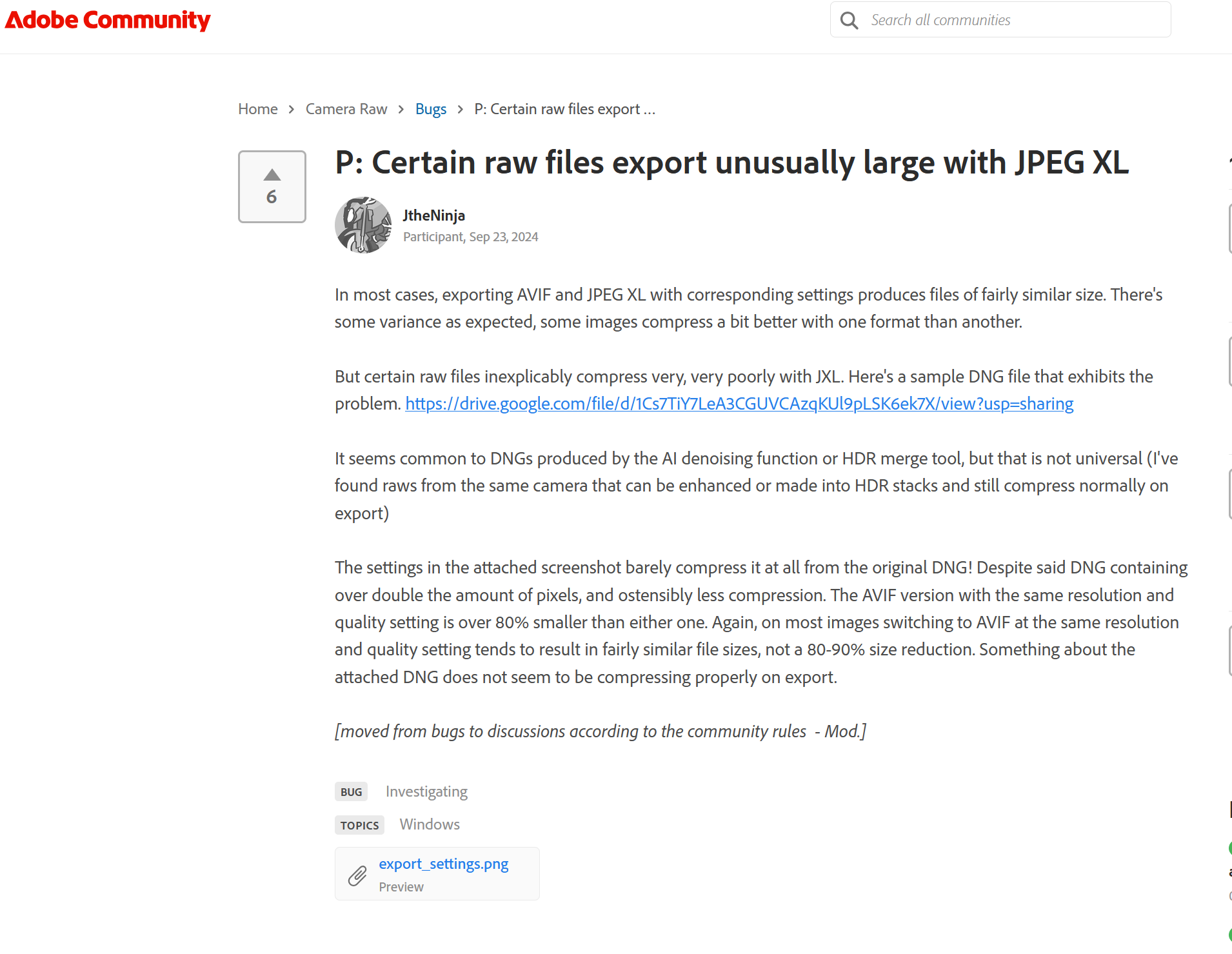
And for the record, Lightroom still does this today, nearly a year after that thread was made – I just exported a JPG and JXL at 80% quality from a Nikon NEF file in lightroom, and the jpg is 4.77MB, while the JXL is 19.7! So that’s no compatibility, and worse than no compression.
Then Windows added AVIF support natively, and Lightroom had an AVIF export function, so I tried that.
At first, I was absolutely delighted – file size was tiny compared to JPG, and the images looked just as good. With the same NEF file above, an AVIF at 80% quality is just 2.48MB – that’s nearly half what the JPG is
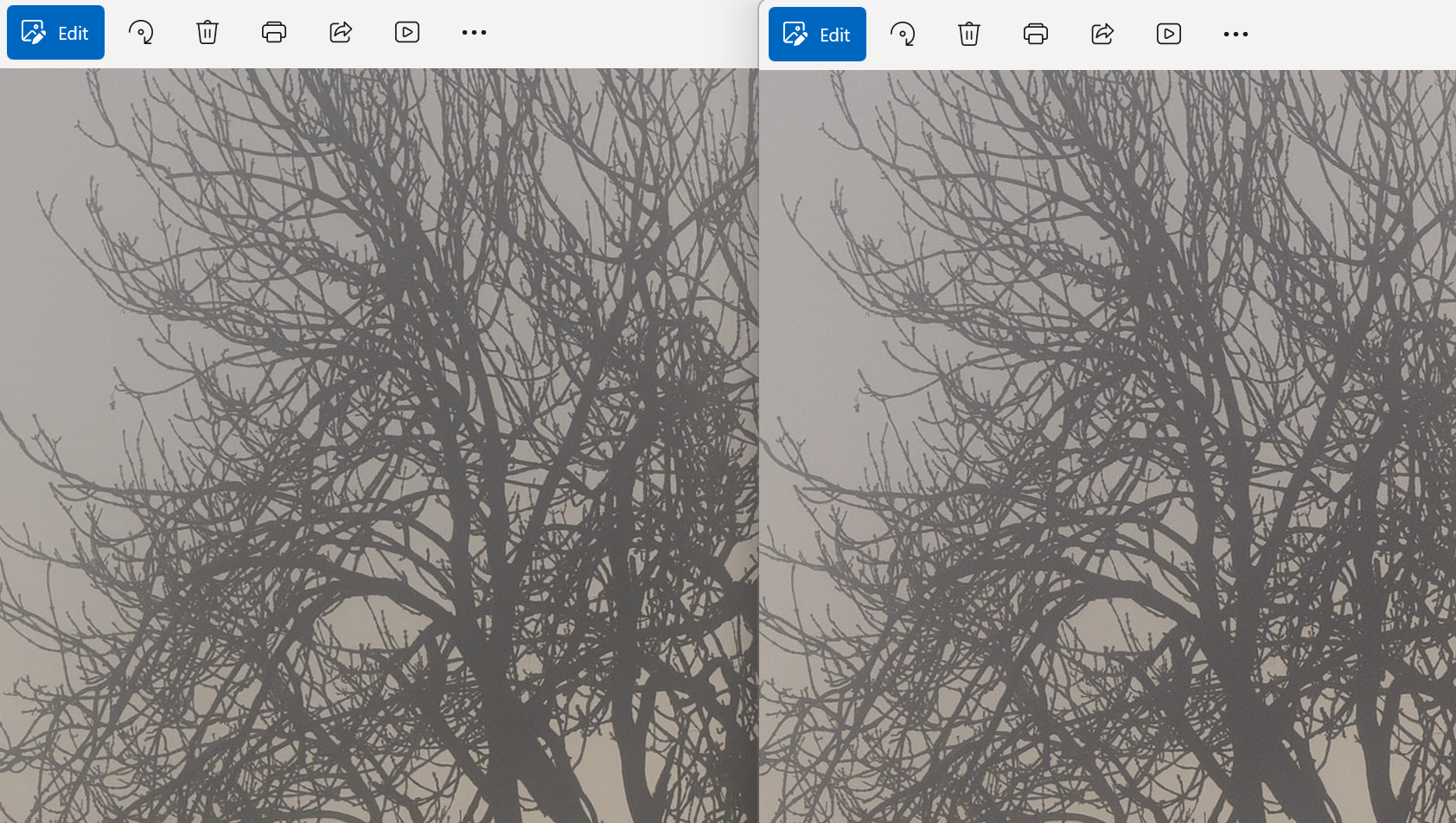
Unfortunately, after converting a few folders of photos, I noticed two things: Windows photo viewer supported AVIF, but there were some niggles; firstly if the image was more than ~4000 pixels on the long dimension, a green bar filled a few pixels at the side of the image. This turned out to be an interplay between Lightroom’s encoder, and Window’s decoder that didn’t appear elsehwere, but still annoying (this is now fixed in Windows/Lightroom, so far as I can tell. Secondly, the OneDrive app on Android won’t show AVIF’s in gallery view (though it will show thumbnails in the files view), which just added more friction when trying to show someone something on my phone. As far as compatibility otherwise, Blender was fine, but neither Reality Capture nor Metashape would handle AVIFs natively, so it wasn’t really an option for converting images back and forth, losing information each time.
Where we are today
The reason I’m writing this post now is that we seem to finally be finding some stability. Firstly, it helps that I recently moved away from Lightroom to ON1 Photo RAW, which has a far more reliable JXL export – the exact same .NEF file above exported as an 80% quality JXL from ON1 is just 2.02MB – smaller than Lightroom’s AVIF, still perceptually the same as the 100% image (annoyingly, ON1 can’t read AVIF, so my early attempts at conversion are hidden from it’s catalogue for now).
Windows implemented excellent JXL support, and the green-line bug in AVIF seems to be fixed. The OneDrive app and my photos app, both on Android, handle AVIF and JXL absolutely fine.
And importantly, Reality Capture can import and use JXL in exactly the same way it does JPG, so I can convert old photogrammetry datasets, with the option of doing so losslessly while saving space.
I would offer to provide all three at full res so you can download and check them yourself, but when I try, WordPress gives me this:


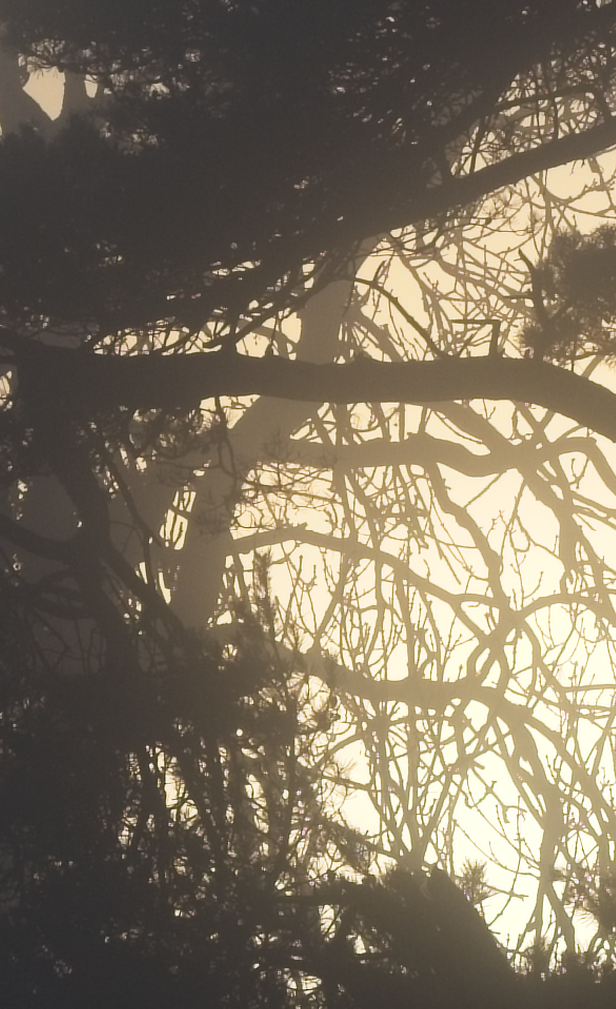
So here’s a 100% crop of each, screenshotted, which is the best I can do for now:

Here’s a screencap of the .NEF file at 100%:
How I convert:
So, on a 1-1 basis I’m using ON1 to export as JXL. I’ve set up an export preset, such that I can right click on 1 or more images at once in the ON1 browser, and export to the same folder as JXL. Then I delete the JPGs.
I’ve also been using ImageMagick a lot, which is a free way to accomplish the same thing. I installed in in Windows Subsystem for Linux so I could use some bash scripting, but the same works for windows and powershell with some tweaking. I’ll navigate to a folder, open the terminal there, then enter the following:
for img in .JPG; do convert "$img" -auto-orient -quality 80 "${img%.}.jxl"; done;That will loop through all the files ending in .JPG and make a jxl version of them. You may need to change the “.JPG” to “.jpg” or “.jpeg” depending on what extension your files use.
The space savings are considerable – I’ve given you examples above where the jxl is half the size of the corresponding jpg, but in some cases I’m seeing JXL files at 1/3 or less of the jpg. And for photogrammetry datasets where you have 100’s of files, the space savings can easily be 10’s of GB. I’ve freed up over 200GB of onedrive storage so far only converting my personal photos, and a couple of my photogrammetry datasets.
To demonstrate there’s no detriment to photogrammetry, I’ll use Reality capture on JPG and JXL images of the same dataset – an Ostrich phalanx:
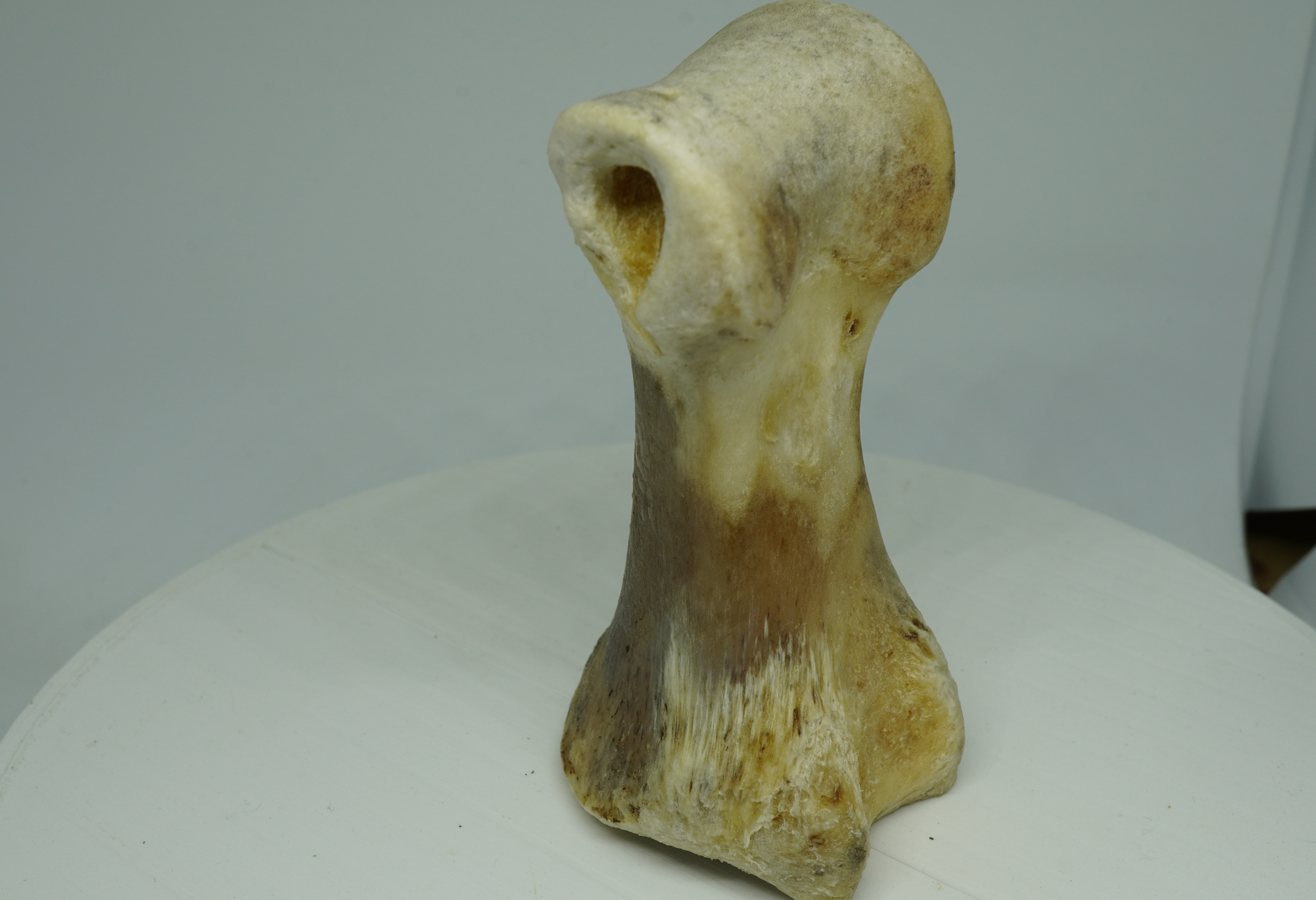
There are 145 images in this dataset – the JPGs are ~14MB each (straight out of camera), the total size of that dataset is 1.89GB. The JXLs are ~1.5MB each, and total 194MB. That’s an order of magnitude less disk space, and here’s a comparison at 100% crop
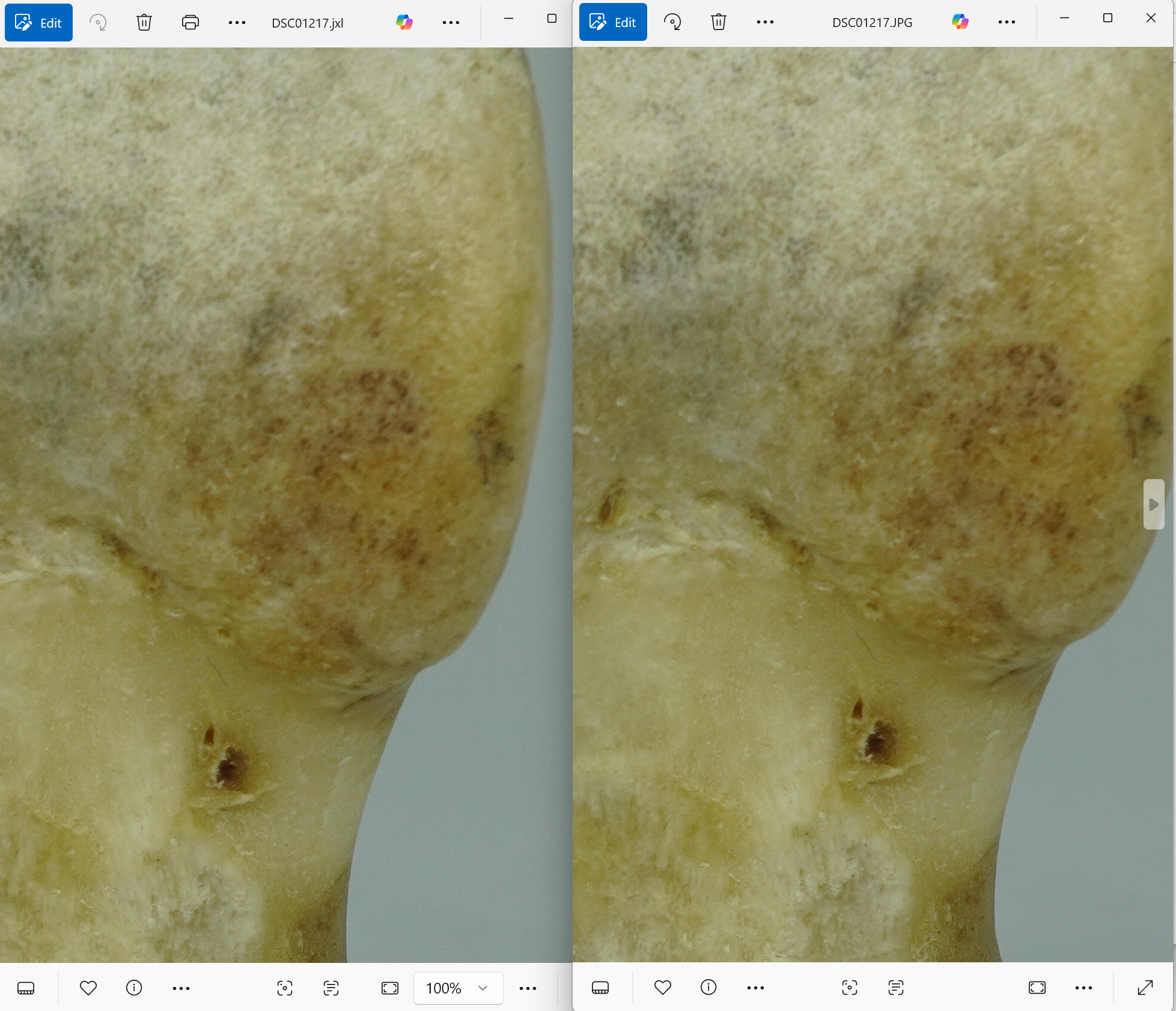


Above – reality capture making models from 145 JPGs (1.89GB) and 145JXL (194MB) – time to align, mesh, and texture was basically the same for both.
Conclusion
From the start this has felt like placing bets on a horse, without enough info to really know which will win. There’s a whole rabbit hole I’ve been down (and not repeated here) about which big tech companies are pushing which formats: AVIF has recently been more adopted by Apple in its camera and in Safari. Google was an early proponent for AVIF, despite having been heavily involved in developing JXL only to remove JXL support from chrome development, which sparked a massive backlash (it’s back in now).
But, it seems JXL has the compatibility edge right now (I can use it for photogrammetry), and widespread usage of both seems to be increasing.
Just in case though, I made a cold-storage backup of all my jpgs before I started converting!
 Prof. Peter L. Falkingham
I’ve settled on WebP after exploring the same options you did.
Compatibility seems better, encode speed is okay, decode speed is incredible, and with some slight tuning to cwebp input, it returns excellent results.
I looked into WebP, but it seems to have less advantage in space savings, and isn’t compatible with my photogrammetry software. (It’s also not a native export option of LightRoom or ON1 last I checked, though that’s not a deal breaker). Also I don’t think it can handle higher bit-rate images than 8-bit
Encode and decode speed are interesting – JXL/AVIF do have some issues in this regard, but on a decent computer even a high-res high-bit photo doesn’t take an appreciable time to decode.
What kind of space savings did you see? And where are you using your WebPs?
In theory, WebP should compress less compared to AVIF/JXL for the same filesize, but I did not find that to be the case in most times in practice, and actually found WebP to (with the options I tuned) return perceptively lossless compression for (usually) significant savings, while still retaining features important to me (no tiling artifacts at more than 8192 pixels in a dimension unlike AVIF, better support compared to JXL and AVIF, faster encode/decode than AVIF).
Bitdepth is indeed 8bit, but I am “archiving” images I’ve taken/edited/exported already, so I don’t need the extra leeway on bitdepth, and even testing them against basic adjustments after WebP compression yielded acceptable editing abilities.
On images that do not have tons of chroma/luma noise, typically 60% file size savings at a minimum, up to 95%, perceptually lossless.
I am “archiving” my nearly 300GB of images on my family NAS to WebP to save space and homogenize formats, so being small and easy to view anywhere was the most important criteria, and WebP does this swimmingly. BMP, TGA, TIFF, PNG, GIF, JPG, et al, all to WebP, keeping metadata where it was present prior, and keeping transparency as well.
I am using this Thunar User Custom Action that folks on the XFCE Matrix room helped me create: https://codeberg.org/Saijin_Naib/Thunar-Custom-Actions/src/branch/trunk/.config/Thunar/WebPify/WebPify.sh
Another really excellent application for it was as a format for TMS/xyztiles data, compared to png or jpeg. Testing head to head with png tiles and jpeg tiles, it beat them out for image quality, size, and rendering time.
Some game engines like Godot are even starting to use it as a texture format for models and geometry, which I can see why, having started to use it. It is older, but it strikes a surprisingly good balance, I think.
I am not sure if you still use WebODM these days, but I am working towards getting WebP supported as an export format or the textuted 3D model to replace the insanely large PNG texturemaps, as an input format for RGB/lossy data to make field upload more efficient, and also as a texturemap format for the incredible F3D 3d data viewer tool (and also wrapper tools like Exhibit).
I don’t use ODM much anymore, but that sounds like a super idea!