
The problem – my employer is all in on Microsoft 365. They have flipped the admin switches that mean email can only be checked via Outlook (or Apple Mail, because executives like Apple, I assume). Meetings, data etc are all managed via Teams, and there’s a tight integration between teams and Outlook. Data are stored in Onedrive.
It even goes so far as forcing us to install Company Portal on our mobile devices if we want email there. This in turn prevents saving of attachments, opening of links, and even copy and pasting text between emails.
In this time of Enshittification, and more importantly the absolute dominance of Big Tech pushing us toward technofascism or technofeudalism (I’m not even sure I’m exaggerating here), it’s both morally repugnant, and practically shit – throwing a bunch of hurdles to actually doing my job effectively.
Every aspect of the above is problematic if you’re on Linux. There are no official Linux binaries for teams nor Outlook. Email cannot be added to native clients. That in turn means I can’t see personal and work calendars in tandem. Fine for our administrators who only care about work when they are in their offices, but not ideal for Academics that live a very much blended work/life.
While email can be checked via the web, that’s not ideal – my commute has large stretches of train-in-tunnel with no signal, so I want to be able to draft emails, mark for deletion, and review attachments etc. Work have turned off the ‘offline’ functionality of the Outlook webapp.
So, here’s how I got my Linux machine all setup for doing everything work-related I need to do.
1. Teams
Dead easy. It’s available as a webwrapper flatpack. Because Teams on Windows is just a webapp (sorry, native electron WebView app or some nonsense), functionality is exactly the same as on windows. There’s nothing you can do with Teams offline anyway, and even the windows version doesn’t load if you’re not connected to the internet. So, I’m using gnome, I go to gnome software store, I search for teams, and it’s the top result ‘portal for teams’
Install it, sign in, and you’ve got full functionality!
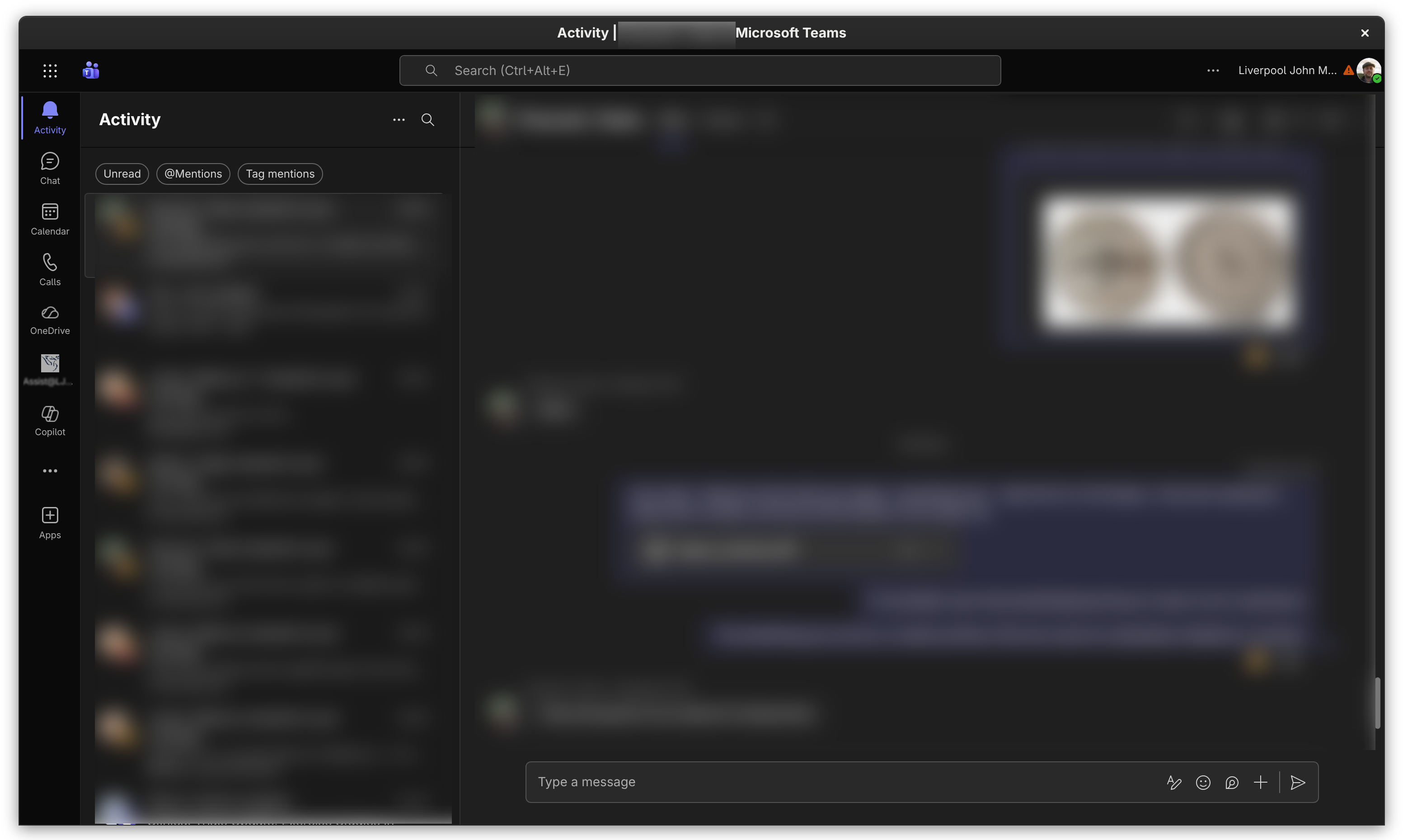
The advantage of this over a simple webapp is that you get an app that closes to the tray with a notification alarm:
2. Email (Outlook)
I’m using a two-pronged approach for email. I really do need to get emails via Outlook so that I get full support for accepting/declining meeting invites, reactions (which i detest, but other people use) and stuff like that.
To answer this, we use very much the same approach as for teams above, except this time it’s not a flatpack, its an appimage, and it’s on github, and the Arch User Repository (AUR).
You can download the appimage here: https://github.com/mahmoudbahaa/outlook-for-linux
On my cachyOS install, I install withparu -S outlook-for-linux-binIt sits in the tray, quite happily, with notifications:
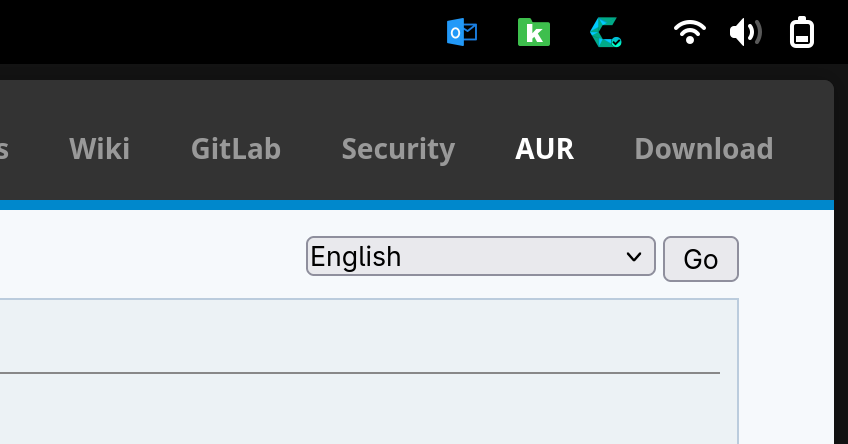
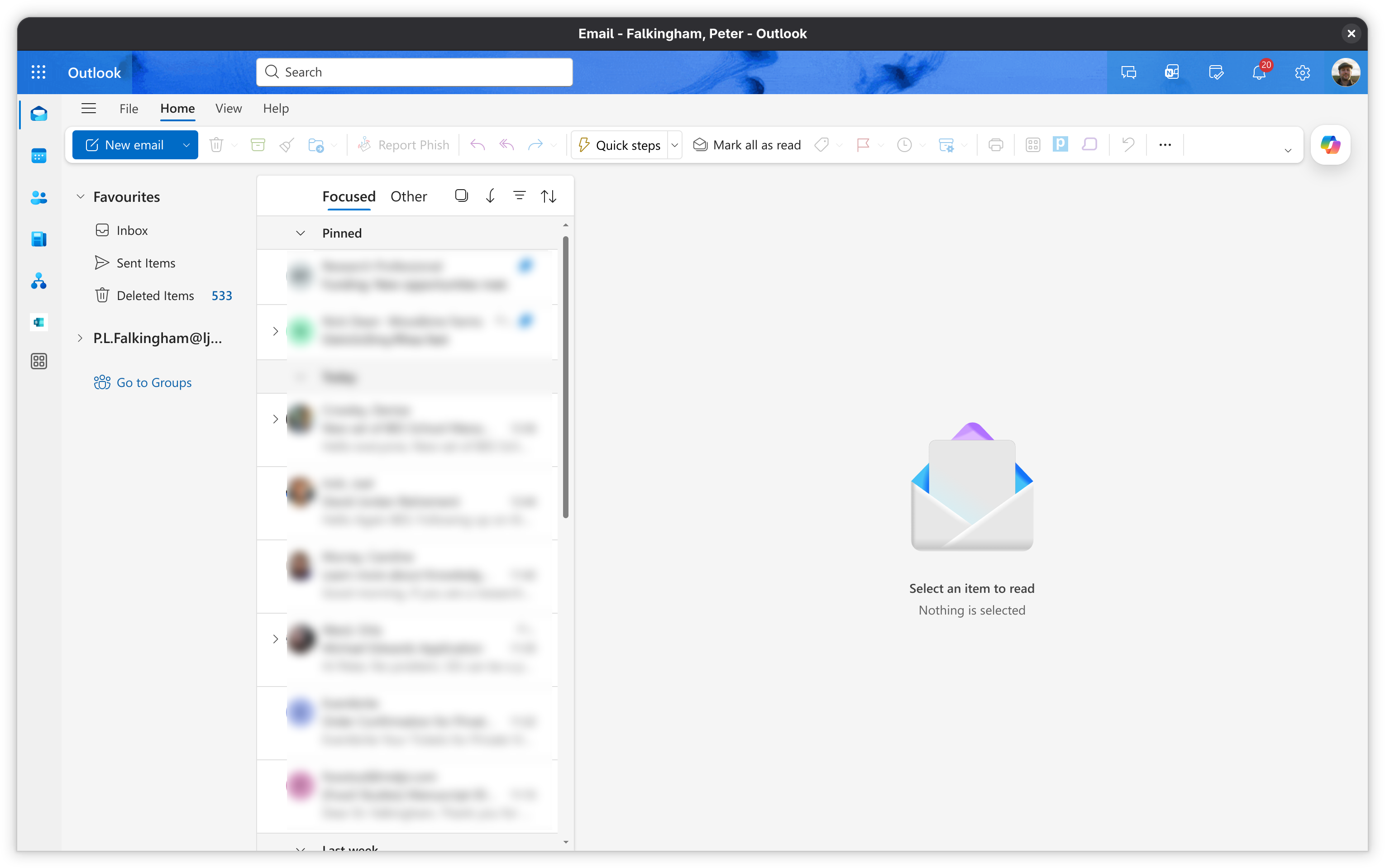
It does require a password when opened, and there’s no offline storage (a config set by my employer), but it works exactly as modern Outlook on Windows:
3. email (offline)
The above gives me outlook functionality, while I’m working at a stable connection. But it doesn’t give me offline access to emails and attachments, nor does it integrate my work calendar with my system.
The answer, at least for the moment, is DavMail. Davmail connects to outlook via the web-based connection. It sits in the background and forwards email and calendar via imap to local email and calendar clients.
So, you need to install davmail. that will sit up in your app task tray (if you installed one in Gnome). Set Davmail as follows:
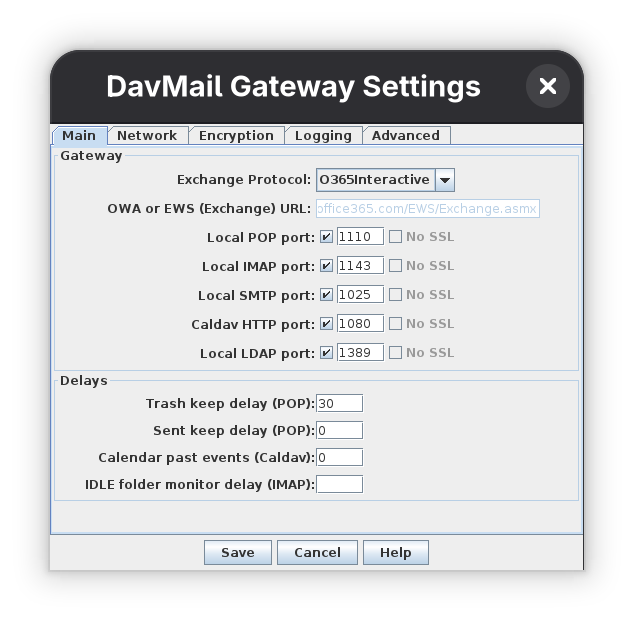
And under Encryption enter the following for client-ID:
d3590ed6-52b3-4102-aeff-aad2292ab01cAnd this under RedirectURI:
urn:ietf:wg:oauth:2.0:oobThose two commands tell Davmail to pretend to be Outlook. So if your organization has limited email to only Outlook, it will see this and assume it’s outlook connecting.
You then set up your email client, in my case I’m using Evolution:
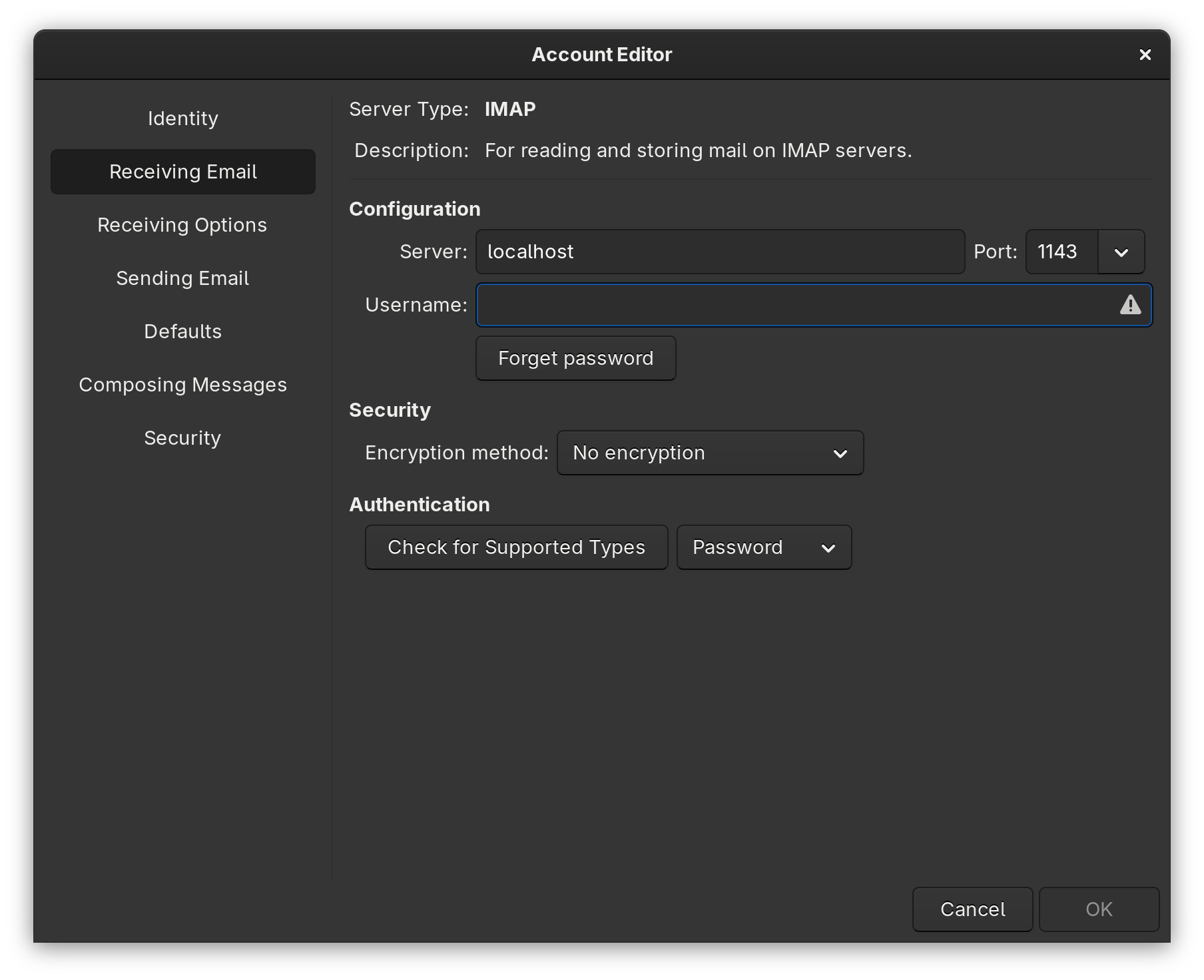
Set your receiving serer to localhost:1143, and your sending server to localhost:1025
When you first connect, Davmail will open a browser window and give you the normal outlook webpage login processs
4. Calendar
For calendar, head into online accounts (again, I’m using Gnome) and add a webdav calendar, popinting at localhost:1080:
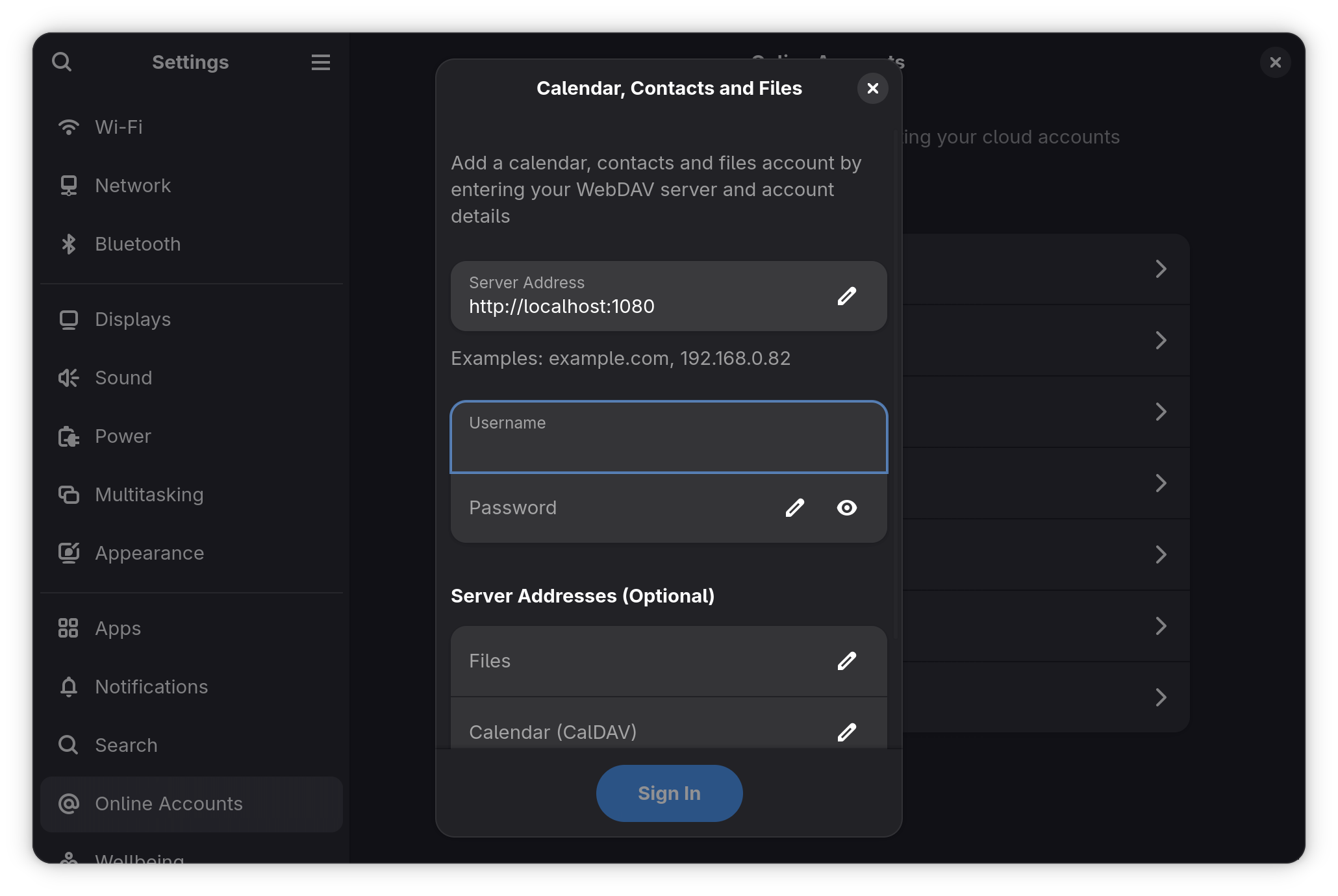
Note that I do have to open evolution first to trigger the sign in window from DavMail
1, 2 3, & 4 b – an alternative approach
You could also just use Thunderbird with OWL for Exchange This is a perfectly affordable addon for Thunderbird that will embed both email and teams into Thunderbird directly. Since Thunderbird updated it’s UI, it doesn’t autodetect Owl during account setup, so you need to go to addons, and then add account manually from the owl addon:
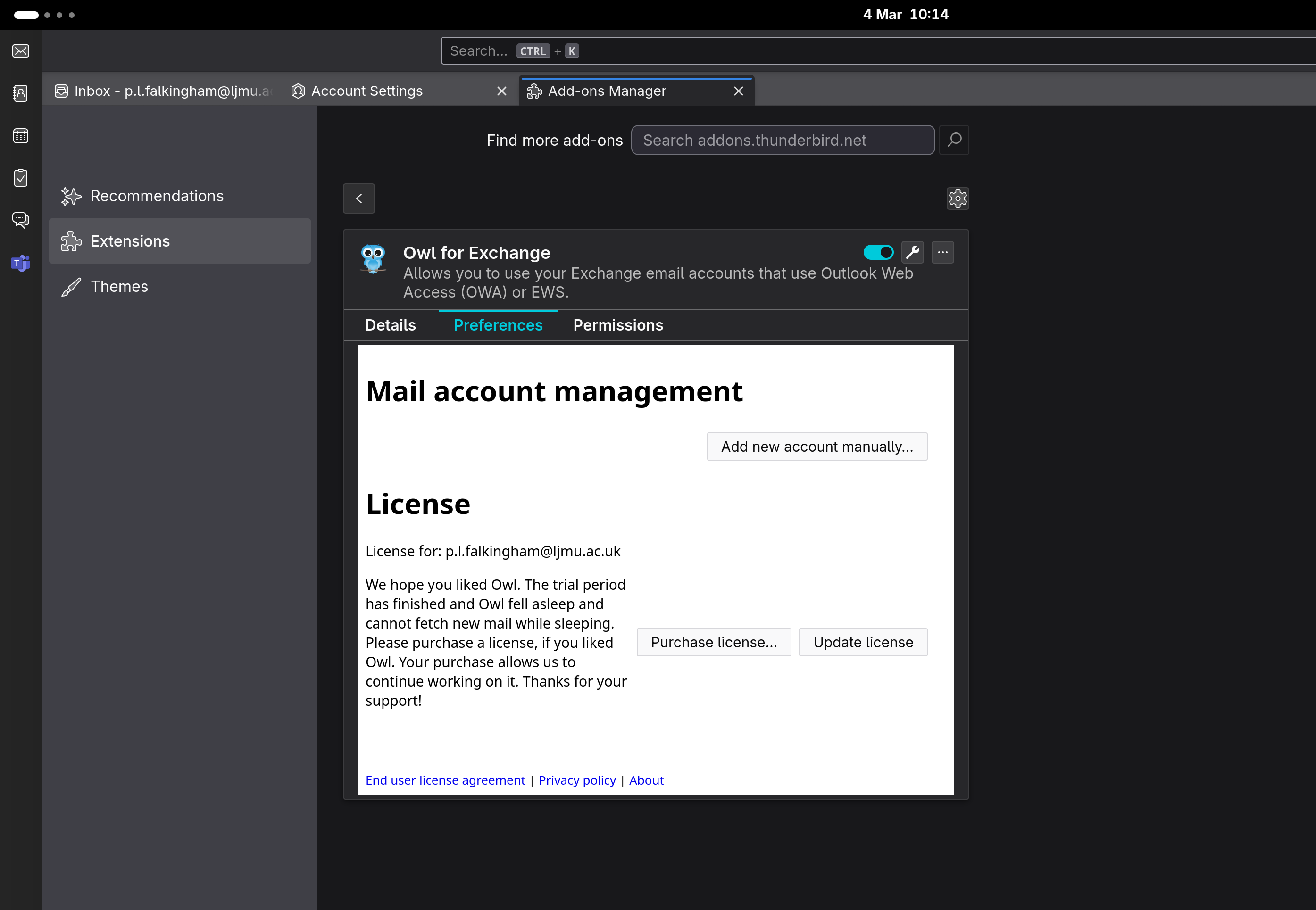
You can see the teams icon in the side bar there, so this gets you teams and offline email all in one go.
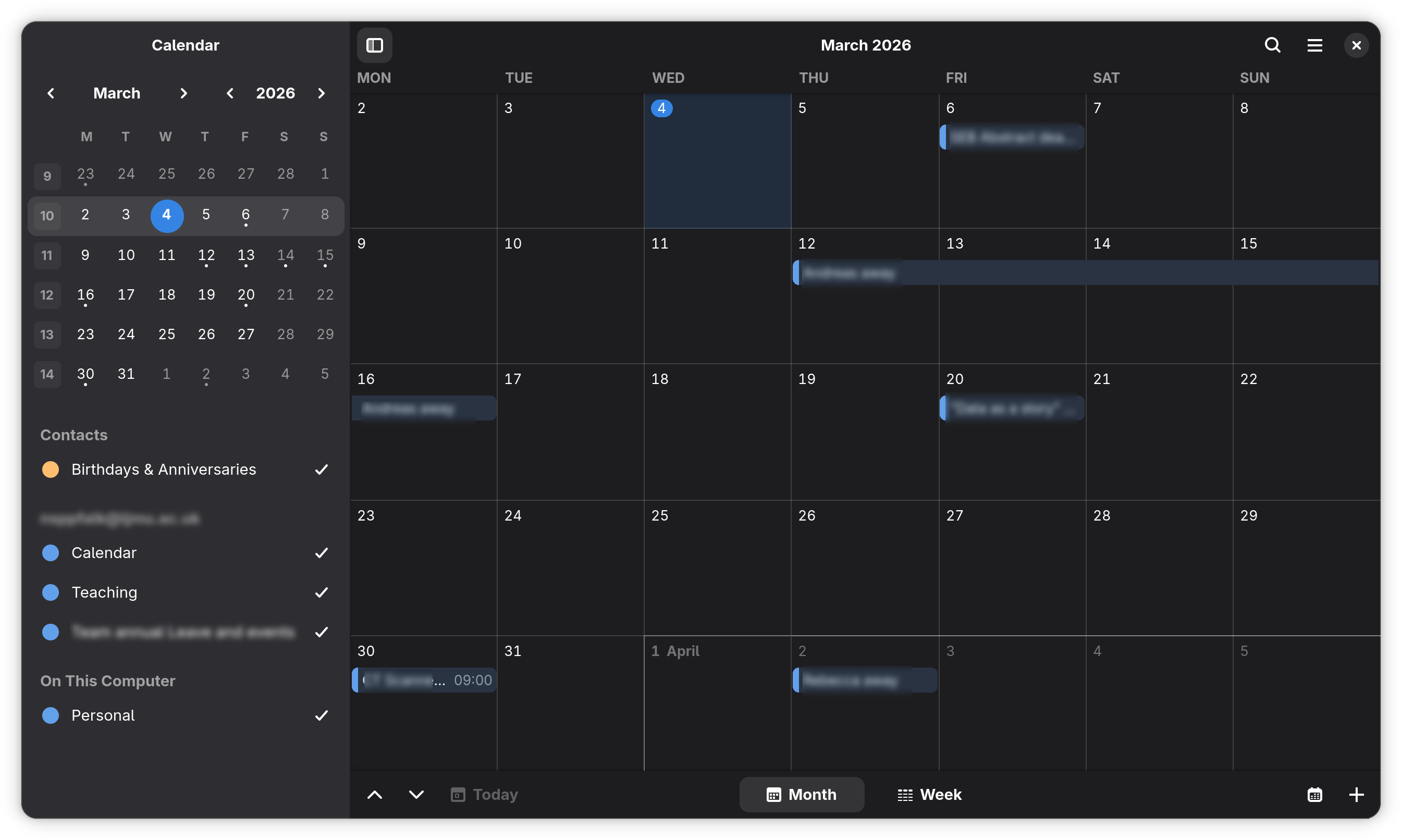
However, OWL doesn’t sync calendars to the system natively. I had to install Evolution-data-server, then add the extension EDS Calendar Integration to Thunderbird (and because the EDS extension isn’t built for current versions of Thunderbird, I had to edit the manifest inside the xpi to let it run.) But, with those installed, I can see work calendars in gnome-calendar, which is awesome. I can’t edit events there though – they have to be added inside Thunderbird itself
4. Onedrive – the final sticking point
If I were on Ubuntu, I could simply run sudo apt install onedrive and get a native onedrive client.
If my institution weren’t so brutally locked down, I could on any Gnome install just go to online accounts, add my account, and it would handle files too. On my CachyOS, I had to separately install gvfs-goa and gvfs-dnssd (https://wiki.archlinux.org/title/GNOME#Online_accounts) and gvfs-onedrive hat tip to get this to work with my personal onedrive, but when it did, Onedrive appeared as a connected drive in Nautilus. Now it’s not actually great – every file is directly accessed from onedrive every time, so opening large files takes quite a while as it needs to be downloaded, but other than that, it’s fairly seamless.
However, I’m not on Ubuntu, and my institution is next-level locked down to Microsoft.
The options then are limited – there’s a linux onedrive client: https://github.com/abraunegg/onedrive but that doesn’t have files on demand, which is deeply important to me (I have terrabytes of data across personal and work onedrives, so this is less than ideal)
And then there’s onedriver: https://github.com/jstaf/onedriver which does have files-on-demand, but can’t handle shared folders.
I tried both, and both were unable to sign in, being restricted by my organization.
Major bummer. I didn’t try rclone, because that follows the same process and would likely also fail.
So I can only access Work Onedrive files via the web-based Teams app. Less than Ideal
The answer, of course, is to move what I can out of the work Onedrive and into a personal cloud storage elsewhere. We’ll see if that’s necessary.
So we can get around most of the locked down stuff – at least online/offline emails, calendars, and teams.
 Prof. Peter L. Falkingham
Leave a comment