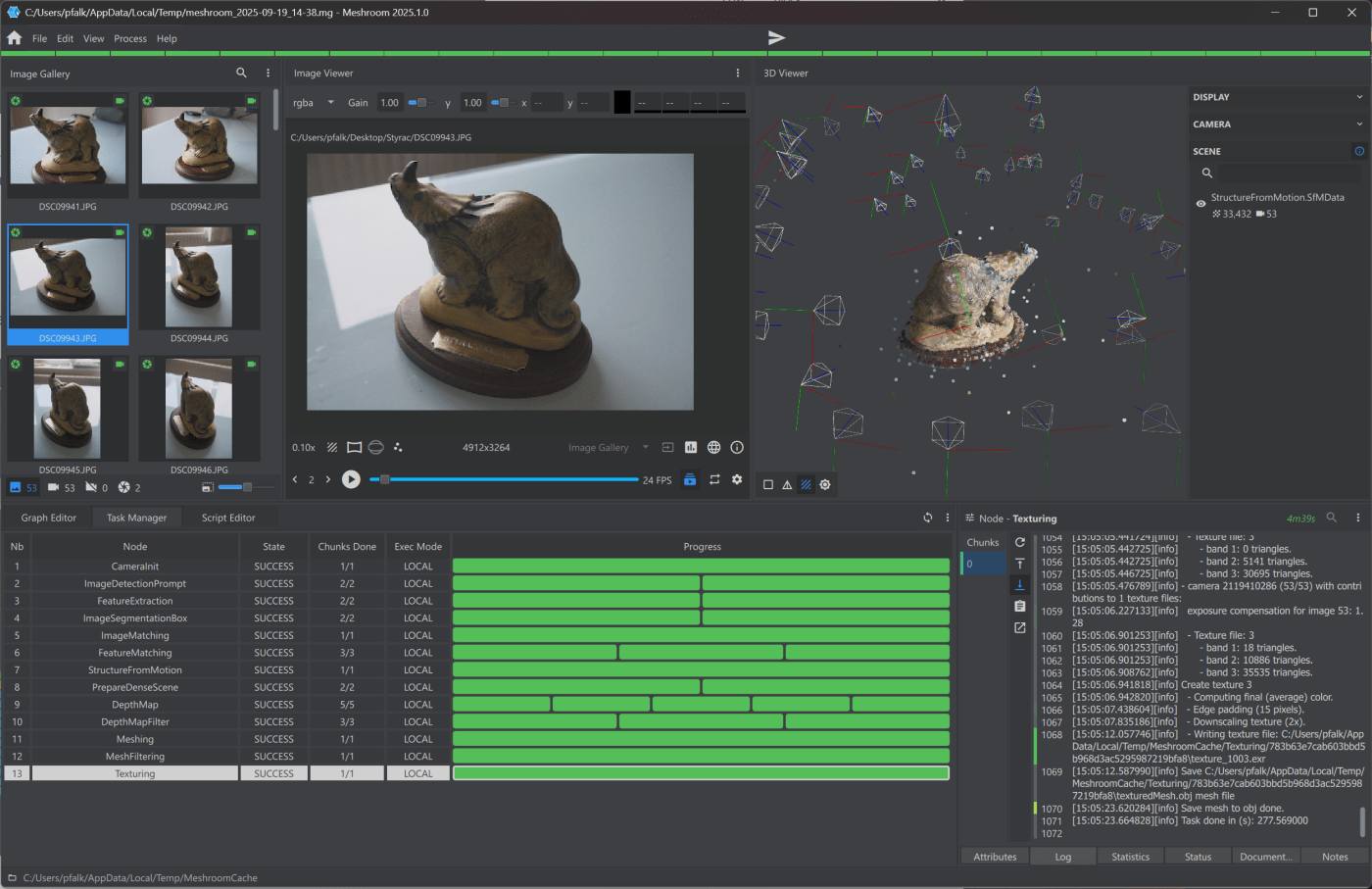
Meshroom has for some time been one of my top choices for open-source or free photogrammetry software, offering a really deep amount of customization and tinkering. However, while this blog made a big splash early on reviewing all the different open-source photogrammetry software, I’ve found they haven’t really kept up with Metashape or RealityScan, and I’m just not using them much any more.
Well, Meshroom has just had a really big update, so I thought I’d revisit it.
There’s a massive changelog on their github, but I’ll summaries some of the features that stand out to me:
- Advanced Plugin Architecture
- Integrated Development Tools:
- Enhanced GraphEditor
- Enhanced 2D Viewer:
- New pipelines, visible when opening the program
- New plugins
- Fixes and improvements to underlying code.
So let’s give it a run with my usualstyracosaurus dataset
New options on open:
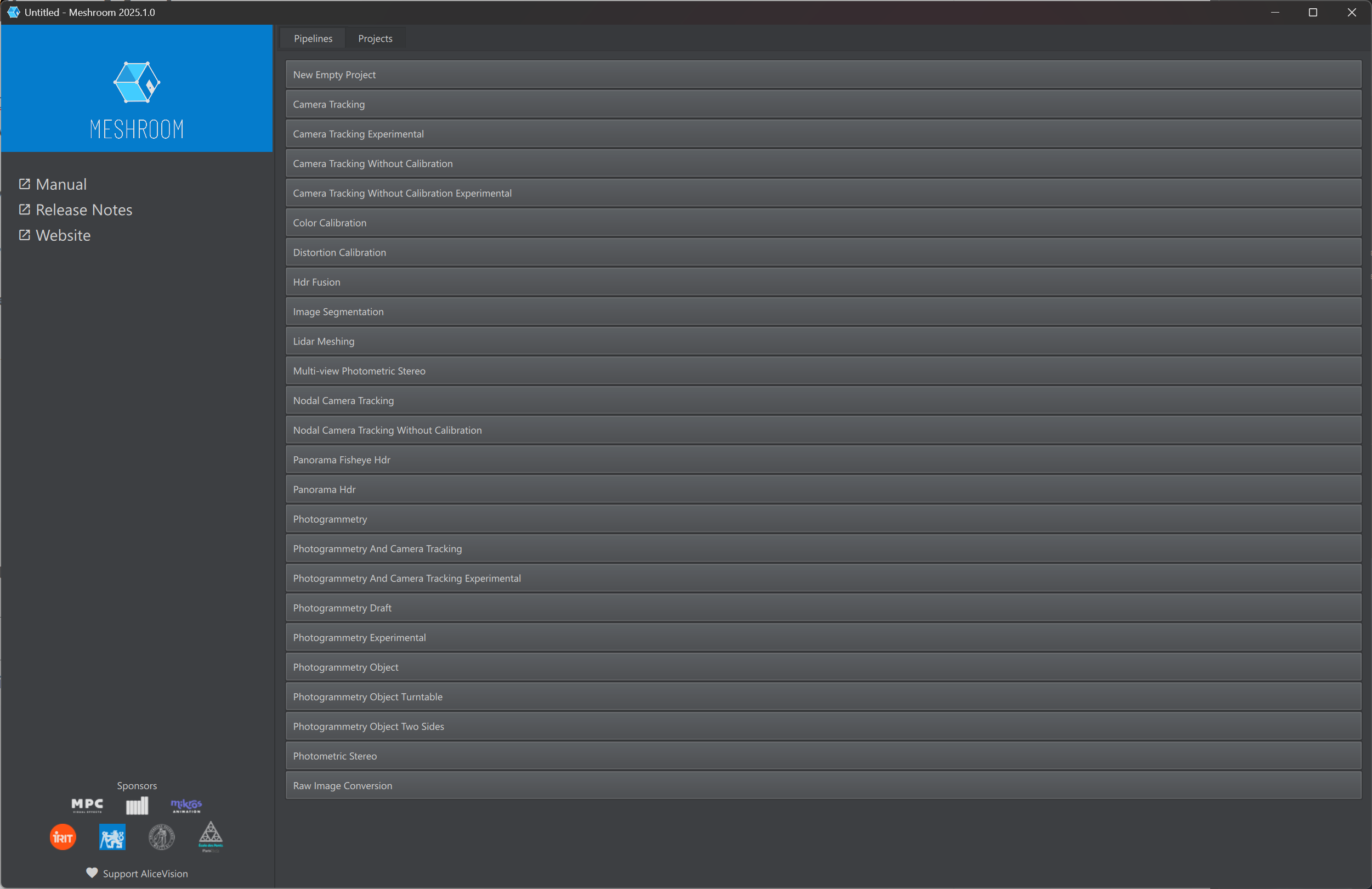
This is the most immediately obvious change. Now when you start Meshroom, you’ve give a huge list of possible projects. Click one of these and it will pre-populate the graph with the relevant nodes. I think this is a fantastic idea, but in practice, it’s a bit lacking. Firstly, that’s a huge list of very similar options, and secondly, they don’t have any explanations. Some are obvious, e.g. ‘photogrammetry’, but some are less obvious – what’s the difference between photogrammetry and photogrammetry experimental, or photogrammetry object and photogrammetry object turntable, and photogrammetry object two sides? I can make an educated guess for most, but there’s no hover text to explain cases that each is for, so you have to open them and look at the graph to see what they do.
The styracosaurus dataset is an object, I guess, so let’s go with ‘Photogrammetry Object’
Doing so opens the main application window, with a pre-populated node graph:

The UI is much the same as before, though a little cleaner if we’re honest, and the graph editor is definately nicer.
As before, drag and drop the photos on the images pane over on the left, and it’ll take a second or two to load the images.
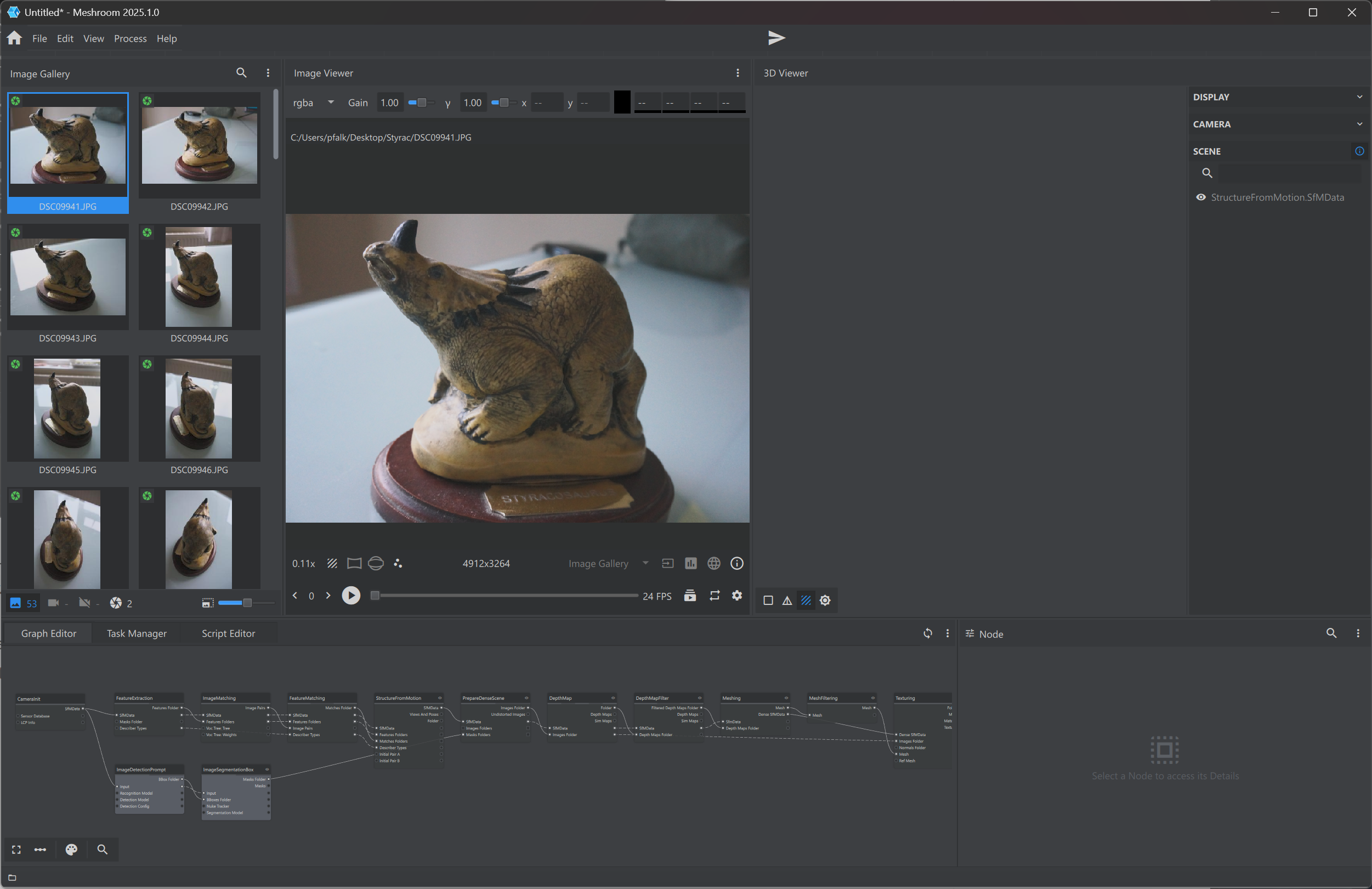
I quite like that the 2D viewer now has a play button, that will play through the images. Not particularly useful, but it’s there.
You might work through the options for each node before hitting start. But I left things at default for now.
When it’s processing you can change the node editor to show progress with the task manager:

Or you can open a script editor there. Nodes when running can visualize usage of CPU and GPU in the bottom right by switching to the ‘statistics’ tab.
As processing progresses, you can visualize things like the sparse point cloud/camera locations by double clicking the relevant node, here I’ve double clicked ‘sfm’
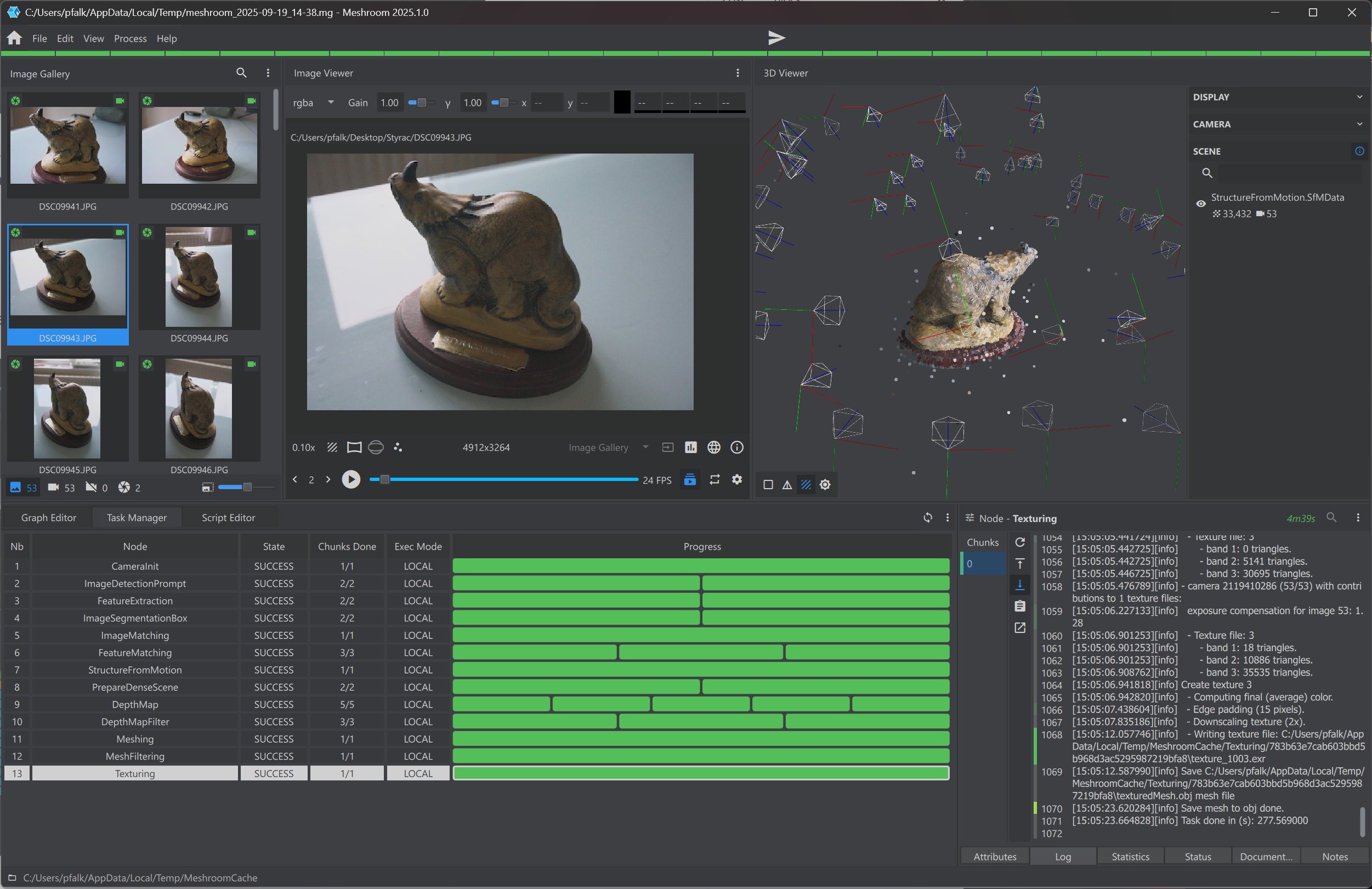
The total time taken to textured model was as follows:
| Node | time (s)_ |
|---|---|
| Cameralnit | 0 |
| ImageDetectionPrompt | 172 |
| FeatureExtraction | 113 |
| ImageSegmentationBox | 184.6 |
| ImageMatching | 0 |
| Feature Matching | 68.83 |
| StructureFromMotion | 85.5 |
| PrepareDenseScene | 1 |
| DepthMap | 295.71 |
| DepthMapFilter | 39.3 |
| Meshing | 191 |
| MeshFiltering | 16 |
| Texturing | 278 |
| Total (s) | 1444.94 |
| Total (m:s) | 24m 5s |
That’s quite a long time, which we’ll get to soon. Times were from running on My Proart P16, with AMD AI 370, 32GB Ram, and Nvidia 4070 (8GB)
Here’s the final model rendered with and without texture in Blender:
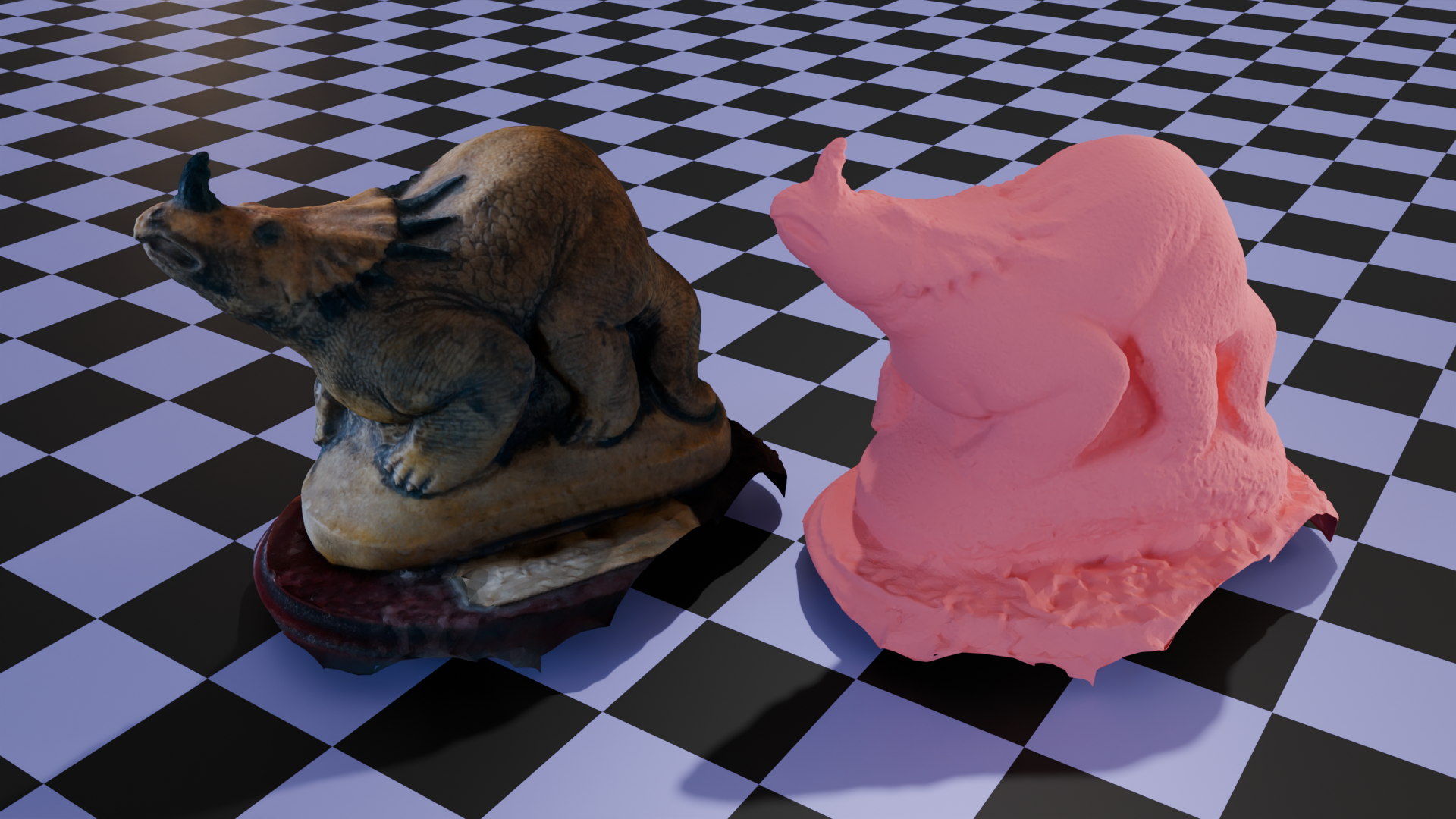
It’s actually pretty nice, better than Meshroom used to produce. However, why am I rendering in blender? Because Meshroom fails to display the textured mesh. If I try, I can see in the console the following errors:
Failed to link shader program: Error: Fail to build reflection info.

Qt3D.Renderer.RHI.Backend: Failed to build graphics pipeline: Creation Failed
Failed to link shader program: Error: Fail to build reflection info.

Qt3D.Renderer.RHI.Backend: Failed to build graphics pipeline: Creation Failed
Failed to link shader program: Error: Fail to build reflection info.

Qt3D.Renderer.RHI.Backend: Failed to build graphics pipeline: Creation Failed
So there’s a QT error somewhere in there.
If I turn on wireframe view, I can at least get a white shilouette, but otherwise meshes aren’t visible:
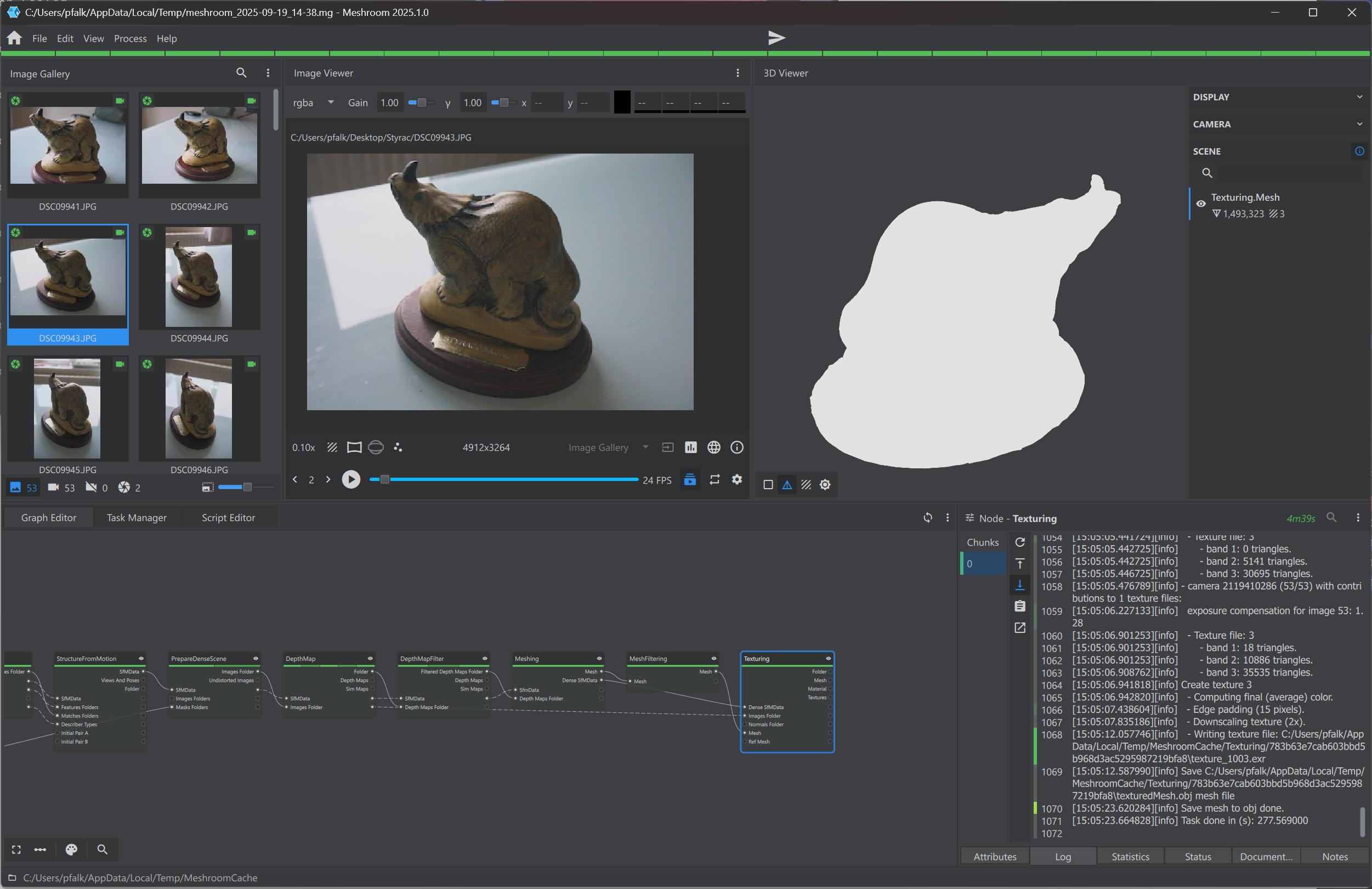
Which is a major show stopper.
Also problematic is that any texturing method other than basic fails every time. So the only texturing method available is basic, which produces lots of poorly packed texture files. Not great.
So in conclusion – quite a nice model actually, with good detail, but bugs in the software make visualization and texturing difficult or impossible.
[edit – 28/11/25]
The issues I was having above with the mesh not properly rendering is to do with my laptop having both Nvidia dGPU and AMD iGPU. If I set Meshroom.exe to use only the nvidia:
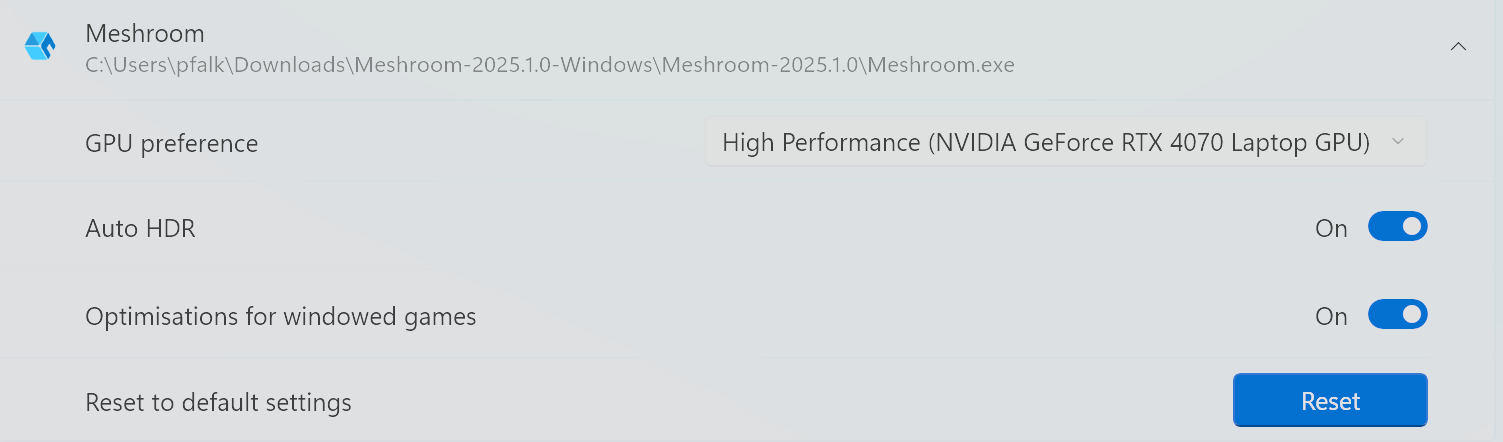
Then everything renders correctly, and as you can see, the mesh and textured model are lovely:

[end edit]
Comparison with RealityScan 2.0
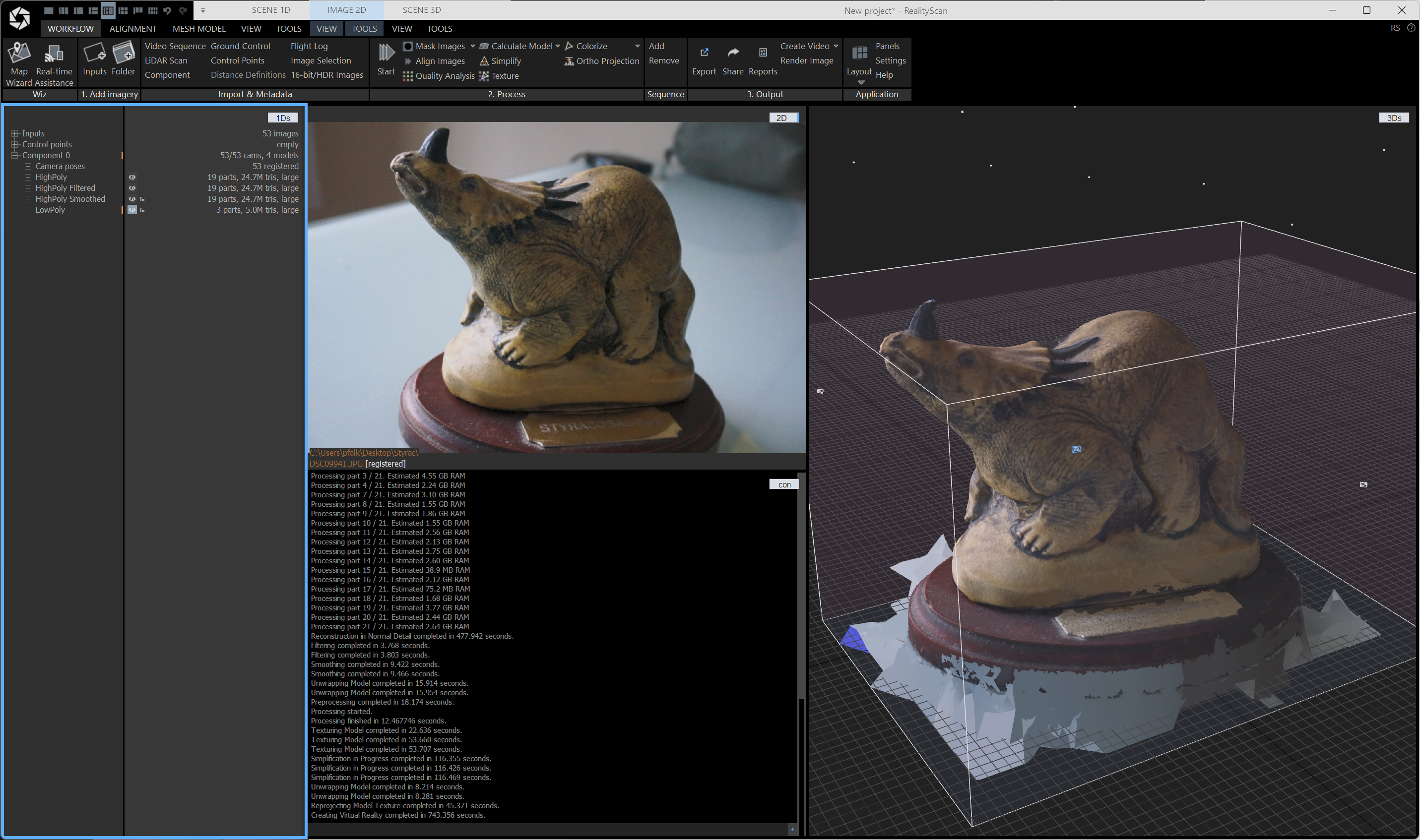
For comparison, I ran the same dataset through RealityScan 2.0.1. Default settings, just threw the images in and clicked start.
Reality scan took just 743.356 seconds (12 minutes 23 seconds), and produced a smoothed mesh, and a lowPoly mesh, and textured into a single UV:
Conclusion
Meshroom is good – more functionality than ever. But the bugs are real showstoppers for me [edit, bugs no longer an issue]. But even if everything were working smoothly, it still takes over twice the time RealityScan takes. Also worth noting that the non-nvidia version of Meshroom, Meshroom-CL hasn’t been updated to the 2025 version, so if you have an Nvidia card, and make less than a million dollars a year, there’s really no reason not to use RealityScan unless you really want to be in the open-source community, or want to take advantage of some of Meshroom’s more niche features/addons – for instance it does have a Gaussian Splatting/NERF addon I’m keen to try after my previous forays into that area.
 Prof. Peter L. Falkingham
Um… Windows?
Won’t it run via Proton/Heroic Launcher like any other Epic Games application, if you really want to use Linux?
It unfortunately does not, at least not on my end. A big part of the UI is .Net based and fails to render normally on my system (ArchLinux with KDE Plasma).I could not get the file dialog to open properly. I saw more people experiencing UI problems.
Reality Capture (now reality scan) now has native Linux binaries, rmp and deb. Works perfectly on my bazzite/fedora install: https://dev.epicgames.com/documentation/en-us/realityscan/realityscan-for-linux
It does seem to do a nice job, seems a little buggy for sure though i keep coming back in the morning to my gpu having crashed and a still screaming pc with no display activity till i reboot. had to reinstall my gpu drivers after the second try. Gotta debug that soon. segmenting is nice liking that for masking.