Whilst my academic career started with EndNote, I’ve been a purely Zotero user for several years now. I find Zotero to have a nicer interface, as well as being faster and more extensible than EndNote. Plus, biggest benefit of all – it’s free!

Zotero is open source and you can use it completely free of charge. Zotero do offer cloud storage options to sync your library and PDFs – you get 300MB free, but if you pay $20/year you can get 2Gb, $60/year you get 6GB, and $120 a year nabs you unlimited storage.
But maybe you don’t want to upload PDFs and files to their cloud services because you already have your own? I use OneDrive extensively, and have plenty of space there, for instance.
Well, it’s easy enough to setup that Zotero will sync the details of your library via your [free] Zotero account, but the PDFs via your own cloud storage. And with a little more setup, you can make sure this all works seamlessly even if you store your PDFs in different places on different machines.
Setting up Zotero
The first step is to get Zotero setup as you need. Sign in with your free Zotero account and tell it to go ahead syncing:

But then head over to the Advanced tab and set up the files and folders to use a ‘Linked attachment base directory’:
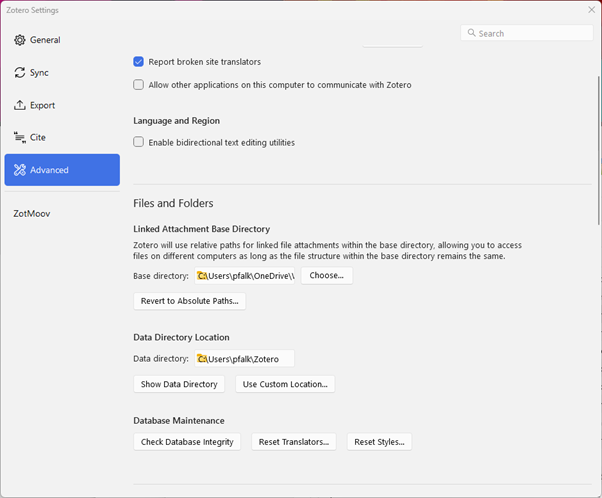
In my case, this folder is:
C:\Users\pfalk\OneDrive\WORK\Documents\Zotero
I also setup the Data Directory to be in my home directory, not synced to Onedrive:
C:\Users\pfalk\Zotero
The difference between these two directories is that the former is where all your PDFs will go, and the latter is where the metadata get stored:
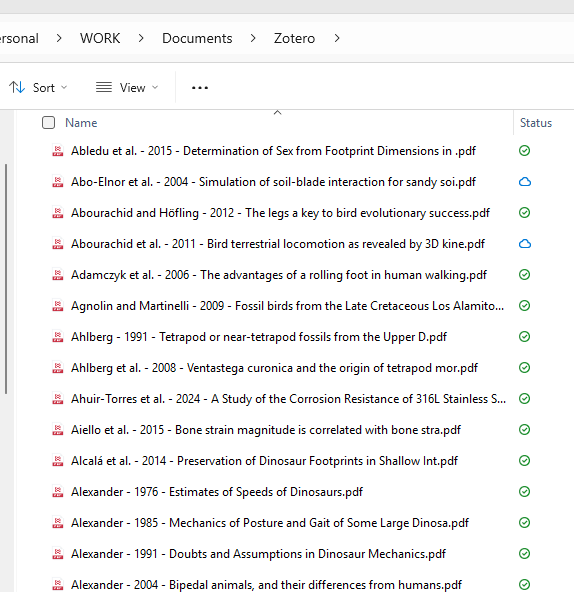

I also then go to the General tab of settings, and get Zotero to rename my files:
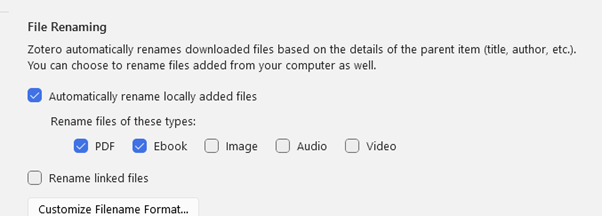
I like it to just be name – year – title.
The final piece of this puzzle is an addon, Zotmoov.
Getting and setting up Zotmoov
You can get Zotmoov here: https://github.com/wileyyugioh/zotmoov
Download the zip file from releases, then in Zotero go to tools->plugins, and install it with the small gear icon.
It’ll then appear as an entry in your settings window:
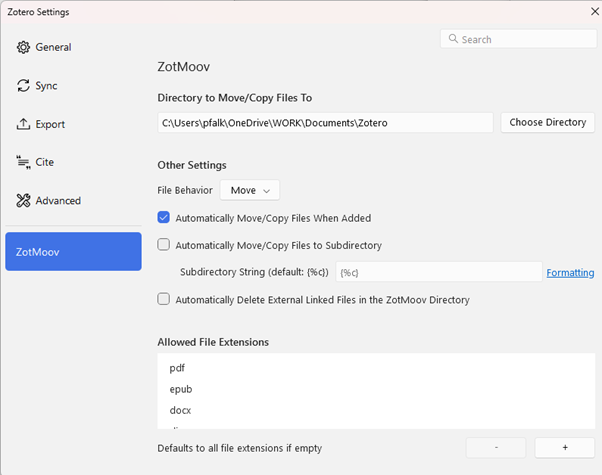
I have it setup to move files. Make sure the directory to move/copy files to is the same as your Linked attachment base directory you set in the Zotero settings.
Now, when I add a PDF to Zotero, it’ll find all the metadata for the file, creating an entry, but then it’ll move the PDF (renaming it too) into my OneDrive folder. If you want, tick the checkbox to use subdirectories, then it’ll stick PDFs in folders corresponding to your collections.
If, on another computer, your onedrive/dropbox/whatever is in a different place, everything will still sync smoothly and PDFs should just open from a double click in Zotero.
This has worked great for me for years now. The one downside is that it means PDFs won’t sync to and be openable from the mobile apps (android app is currently in beta). But that’s not been too much of an issue for me (I just download the PDFs to my phone from onedrive directly and search the folder manually.
The other cool thing about ZotMoov is you can integrate it after you’ve built a nice big library, because you can select references (including all of them), right click, and get three Zotmoov options:
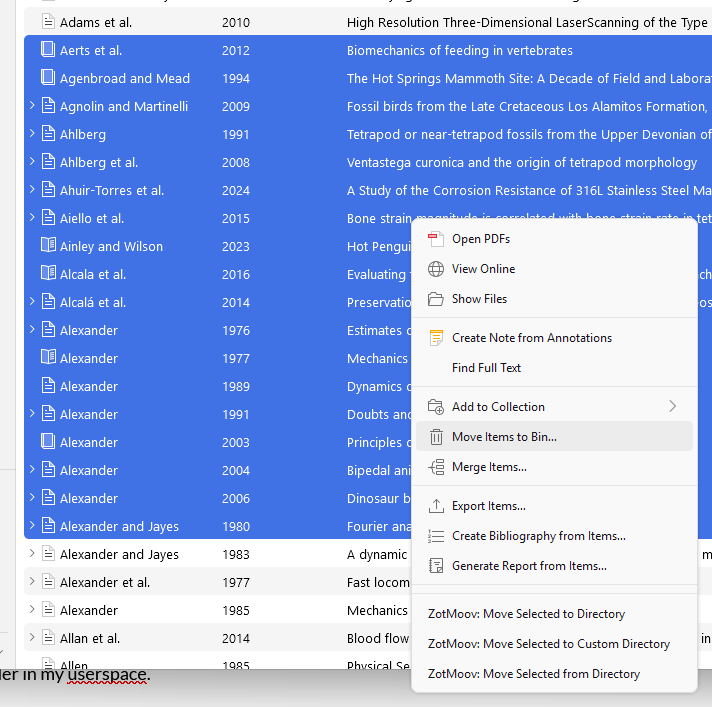
Move the PDFs to the normal base directory, or to a custom directory, or away from the base directory.
 Prof. Peter L. Falkingham
Hello there! Thank you a lot for this tutorial. I am currently using Zotero with a few colleagues from my team, and I was looking to store our group library’s PDF attachments to a local shared repository that each of us can access. Do you think the procedure you’ve shown here would work for multiple users, i.e. for multiple Zotero accounts collaborating in one group library?
Thanks for your time!
Victoria
Yes, it should. You might get conflicts if people are annotating/editing PDFs simultaneously, but if they are just reading and adding references, it should be ok. Make sure everyone sets up the same file renaming conventions first.
Thank you so much for the tutorial – this really helped!
Thanks, this is incredibly helpful! Just wondering why you need the Zotero file sync turned on in your sync settings. I thought the whole point was only to use the free data sync but not the attachment file sync? I’ve kept it turned off and it seems to be working smoothly – at least so far!
Thanks again, Rob
By using zotero sync for the library and metadata, you avoid OneDrive/Dropbox etc getting unhappy with locked files if you open zotero on two computers at once
Ah, ok that makes sense. Thanks again for this extremely helpful page!
Thank you for writing such clear instructions! This was really helpful to create a workflow process while having things organized in cloud.
Thank you for the elaborate tutorial! I read this warning in the Zotero page: “Storing the Zotero data directory directly in a cloud storage folder is extremely likely to corrupt your Zotero database and should not be done.” What do you think about it? Is that ab problem you can get around with your method? I don’t want to risk my files.
https://www.zotero.org/support/kb/data_directory_in_cloud_storage_folder
Exactly! The method I outline keeps the data directory separate and synced with zoteros servers. Only the pdfs are stored in your own cloud storage.
Thank you for the tutorial, i followed it but managed to find some pdfs scattered and some in dedicated folders in the Onedrive. Also, zotero cannot find the path to the pdfs on my other device. Could you share your experience on trobleshooting these issues?
Thank you for the tutorial, i used it following all the instructions but my pdfs are scattered and some in dedicated folders in my onedrive. Also, my other device cannot seem to be able to find the path to some pdfs, could you offer your experience on troubleshooting these issues.
Ah, yeah, you need ZotMoov to get everything into one folder. To make sure other devices can see the PDFs, go to edit->settings->advanced and set the linked attachment base directory to point at the OneDrive folder you’ve set up.
Hi, this is very helpful. But I’m running Zotero on a Mac, and it doesn’t want to open the zip file for ZotMoov… Maybe I’m being stupid, but I get the impression ZotMoov doesn’t work on a Mac. Any ideas?
Thanks again for the page
I asked a question earlier about MacOS. I had downloaded the .zip from the ZotMoov GitHub rather than the .xpi. With that change, things seem to be sorted! Thanks again for the article.
Thank you for the article! I was able to follow the tutorial on Ubuntu 24.04 using OneDrive for GNOME desktop. I now have piece of mind that if my hard-drive dies I still have the PDFs backed-up.
How well does OneDrive work on Ubuntu these days? It’s one of my blockers in moving to Linux.
Thanks a lot for the tutorial! This seamless functionality is just what I was looking for getting started with my lit review!
Thanks so much for this, and thanks to the other commenter using Mac – using the .xpi worked like a charm.
Thank you. This is amazing!
That’s indeed a great solution to a problem that has been buzzing me for quite a while, indeed – thanks so much for taking the time to documenting it. I would however advise a bit of caution when using the feature “Move to directory”, especially with a large collection. In my case, only part of the PDFs were effectively migrated – some others were just empty or simply missed the transfer. I eventually managed, by taking it bits by bits (I assume one reference was messing with the process). Anyway, just keeping in mind that it’s a great open source feature, which deserves extra attention. Cheers!