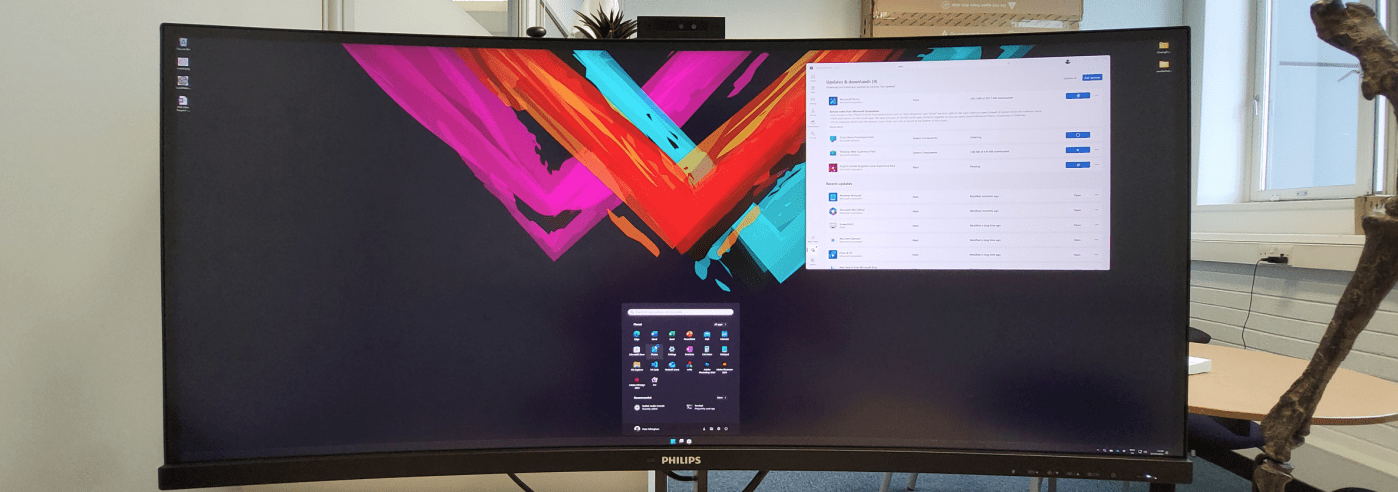
A shortish review here about the Monitor I’ve been using at work for about 6 months now. It’s the Philips 40″ curved monitor:
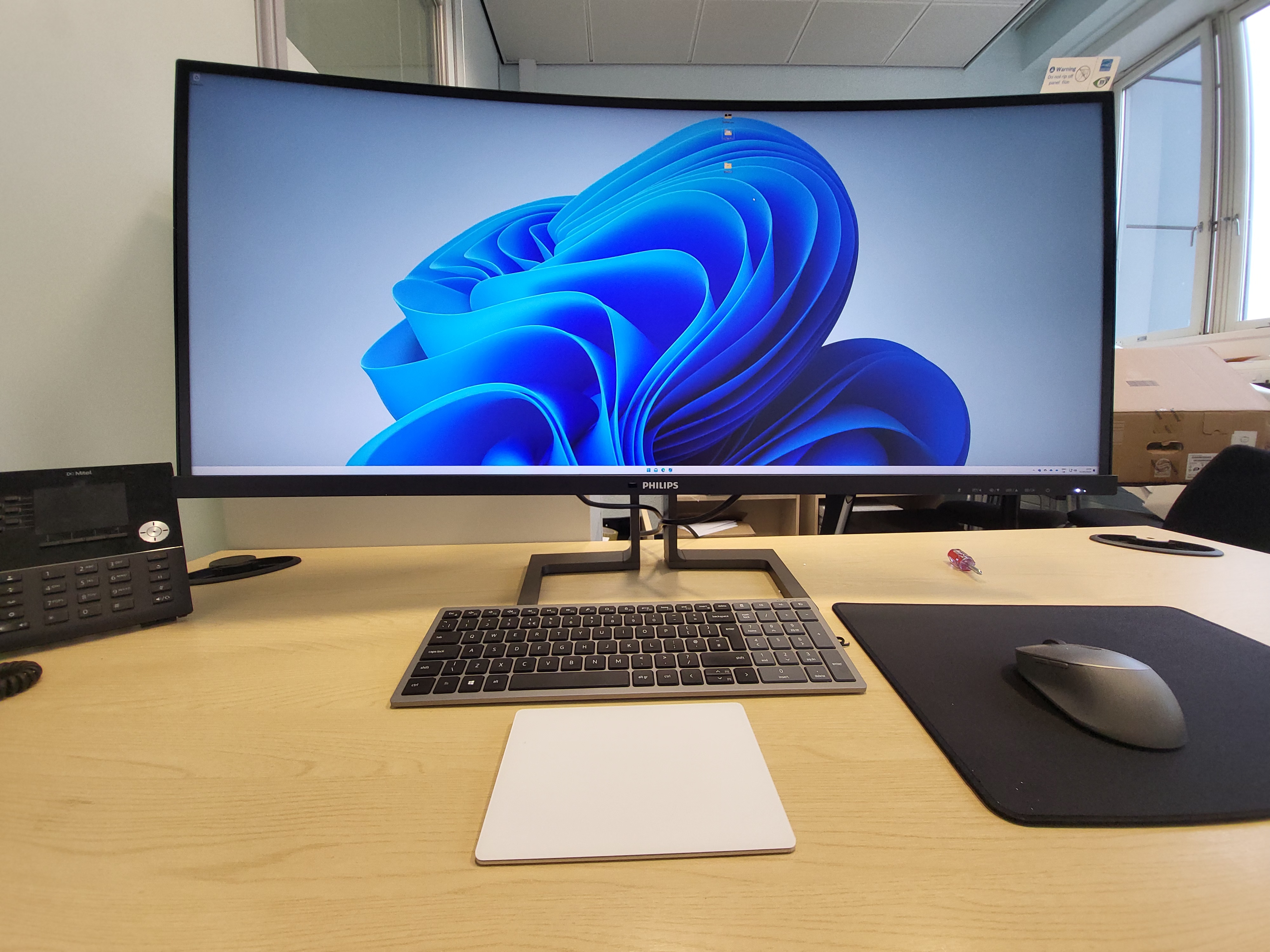
I needed a new monitor to go with the new computers my team and I got set up with, and I very specifically wanted a very high-resolution monitor for multi-tasking. I wasn’t particularly bothered about ultra-wide or curved, but I did want 4k, ideally 5k in resolution. Also on my ‘must haves’ was an integrated web-cam, preferably with Windows Hello facial recognition, because that just makes signing into a computer a doddle. Integrated speakers were also wanted, because I want less crap on my desk.
The Philips monitor was the only real option that provided high resolution, with integrated windows hello.
After 6-months, I’m pretty happy with it, but there’s some design quirks that certainly could be better.
Working with an Ultrawide
I have in the past been a two (or three) monitor kind of person. But I moved away from that 6-7 years ago, finding the focus afforded by a single monitor (even a laptop monitor) more useful than the screen space afforded by multiple monitors. The ultrawide, high resolution monitor gives me the best of both worlds – loads of space for multiple windows at once, or the ability to maximise a window and focus only on that task (even if it does look a bit odd). Throwing Microsoft word up to full screen means I can easily see 4 or even 6 pages at a readable size, and that can help with context.
Complex programs like Blender or Maya work great with all the screen space, without the 3D viewport ending up a tiny window in a sea of menus.
Also, it’s great for hiding behind when people come into your office.
Design and Features
I won’t go over the specs in too much detail, you can just google it or use the affiliate link below to read the tech specs. I’ve already stated, it’s 5k2k in resolution, it has a webcam and mic, including Windows Hello, and of course it’s got a bunch of ports.

The resolution is of course the main reason I got it, and that’s all super. It also happens to be a bit higher refresh rate than I was expecting – it goes up to 75Hz. That’s nothing incredible, and you’re not going to see pro-gamers using this. I’m also one of those people that spent their childhood tinkering and tweaking to get Tomb Raider running at 24 instead of 18 frames per second, and as such don’t really appreciate anything above 60. I also found it had some minor horizontal lines/banding when set to 75Hz, so I dropped it to 70Hz to get the best picture quality. It’s an IPS panel with decent viewing angles, and the curvature is quite subtle, so you can still comfortably have two people looking at the screen.
It’s also HDR certified, the first monitor (as opposed to phone screen) I’ve used that is. But of course, Windows HDR implementation is complete crap, and if you activate it for the desktop everything looks washed out. The monitor itself has plenty of controls that can be used to correct this, but I found the entire thing a bit of a waste of time, given I’m not exactly using it to watch HDR movies or games. Maybe if Windows improves it’s HDR, I’ll give it another go. I very much like that the screen is quite matt – reflections are severely reduced (especially compared to my Surface Laptop Studio), but without the graininess that a full matt coating often imparts.
The Windows Hello/webcam is quite cool – it can lower into the monitor and be hidden entirely.
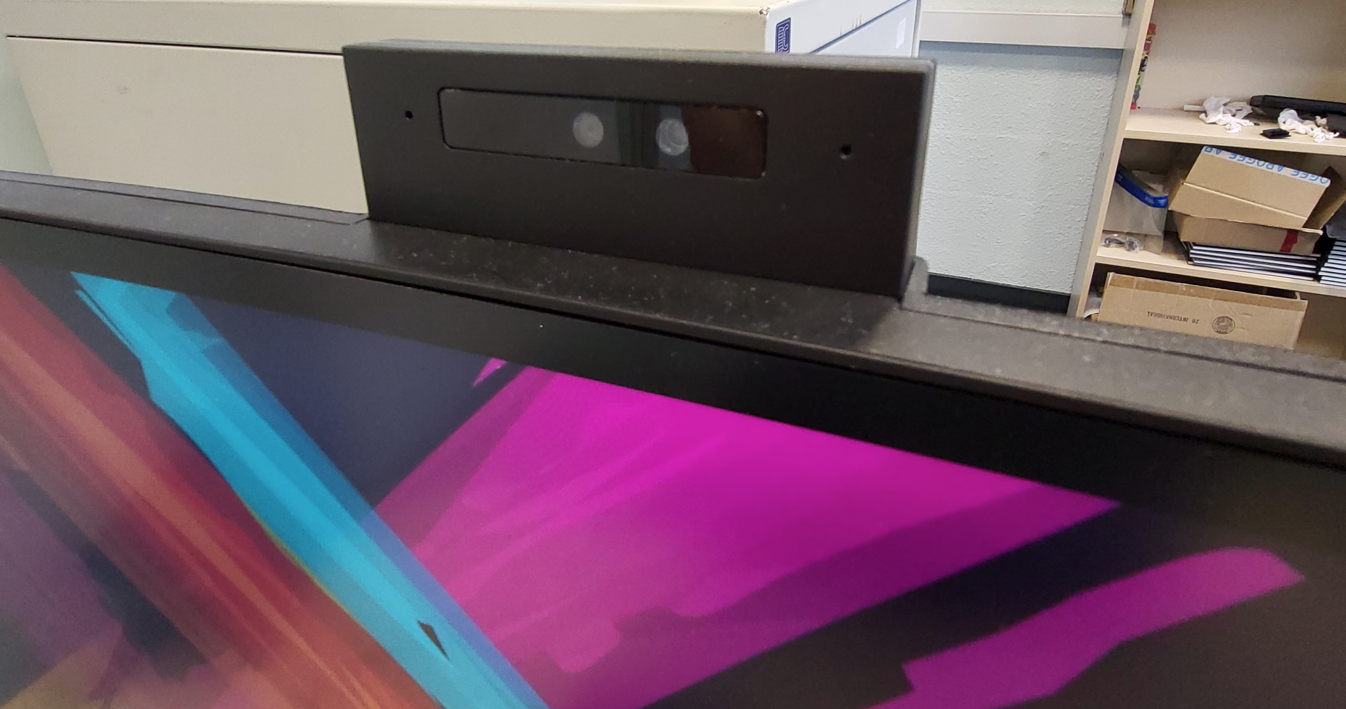
I like the design, and for people that like a physical cover over their laptop webcam, they may really love this. The problem is, you sign into the computer using the windows hello webcam, so if you retract the webcam, then every time you return to the computer to log in, you have to pop it up and wait for it to initialize. Even without that, there is a bit of a delay after you wiggle the mouse to wake the monitor while it initializes the camera, and you could probably enter a pin in that delay. Once the camera is initialized, Windows hello is of course super fast and slick. So… nice idea, and looks cool, but ultimately not that practical.
The webcam quality is fine, nothing to write home about.

Same with the sound. Initially, I had a tonne of issues with the mics not picking up sound correctly. Turned out noise cancelling was on in the monitor’s menus, and it was cancelling voices. What made this particularly painful at the time, was that a bug in the firmware meant that if the monitor was plugged in via DisplayPort, the menu item for noise cancelling was greyed out and couldn’t be changed. I had to plug in via USB-C to enable the menu item, disable noise cancelling, then re-plugin via DisplayPort. For what it’s worth, I contacted Phillips and they very quickly responded, and started work on a firmware fix, which I believe was deployed recently. The speakers are similarly fine, but again, I’m using this at work for zoom and teams, and sometimes some background music from the radio. I’m not using it for a cinema experience.
The monitor has several ports on the left hand side – 2 USB-A (one USB 3, one USB 4, a USB-C, and a 3.5mm audio jack. Kind of like the webcam, it’s great that they are hidden, and that makes for a nice distraction-free experience, but it’s also not particularly practical. USB-C can deliver 90W of power delivery, so good for charging devices.
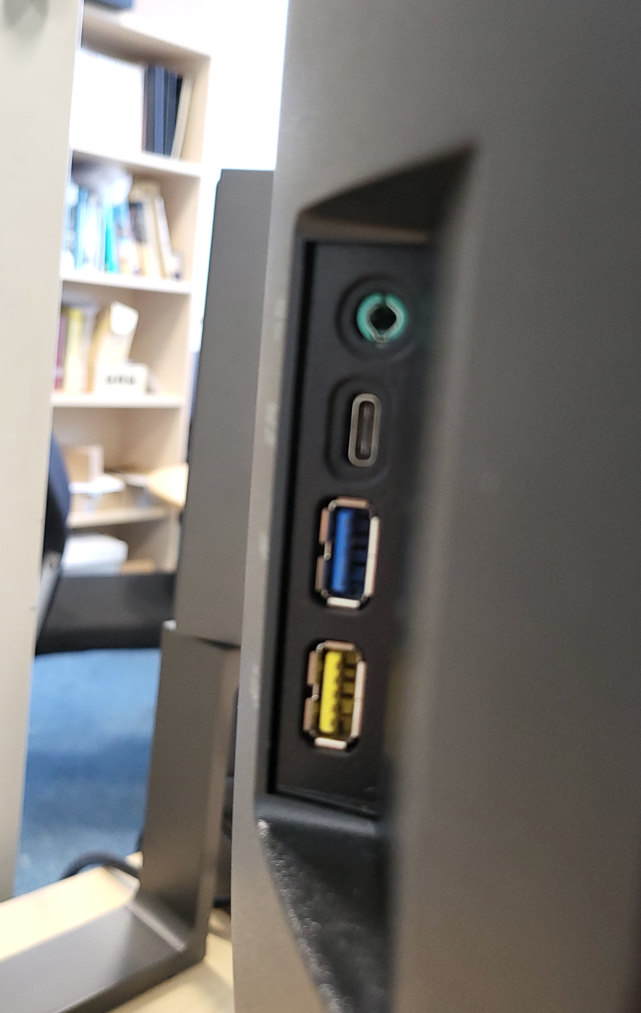
The side of the monitor is miles away from where I’m sat, and also happens to be near the wall, so every time I want to plug in a USB stick I have to rotate the entire monitor. The stand is nice, offering rotation, elevation, and tilt, but it’s still a pain in the rear to rotate a 40″ monitor just to stick in a USB drive and copy a few mb.
It also has a little retractable arm on the left side for putting headphones on. I’ve never used this!
Conclusion
There’s nothing particularly special about the monitor – you’ll find better webcams and audio elsewhere, probably better connectivity, and the Windows hello is not particularly responsive because the camera initializes slowly (I mean, you wouldn’t want it on all the time, but it needs to turn on faster when needed).
However, the combination of features in conjunction with the massive, high-resolution screen and decent colour reproduction make this an excellent monitor for my office use. I wouldn’t have one at home, but it’s not made for that, it’s specifically a business monitor.
If you’re interested, this is an affiliate link from which I might get a bit of commission (but probably not).
 Prof. Peter L. Falkingham
Re accessing USB ports on the back of the monitor – a nightmare we iMac users have been facing from the year …dot – I just stick in some short USB Male-Female extension cables so that the inputs can be readily accessed without moving the monitor eg
https://www.ebay.com.au/itm/135236859084?_skw=USB+3+male+female+extension+cables+24cm